
By installing the progressive dialer, you keep your call campaign train rolling with a constant stream of calls and engaged agents.
How to set up a progressive dialer
Setting up progressive calling is a cinch, and when you use MightyCall’s software, it takes little time. You just have to give the dialer a few key pieces of information so that it can help you run the best call campaign possible.
To set up the progressive dialer, follow these steps:
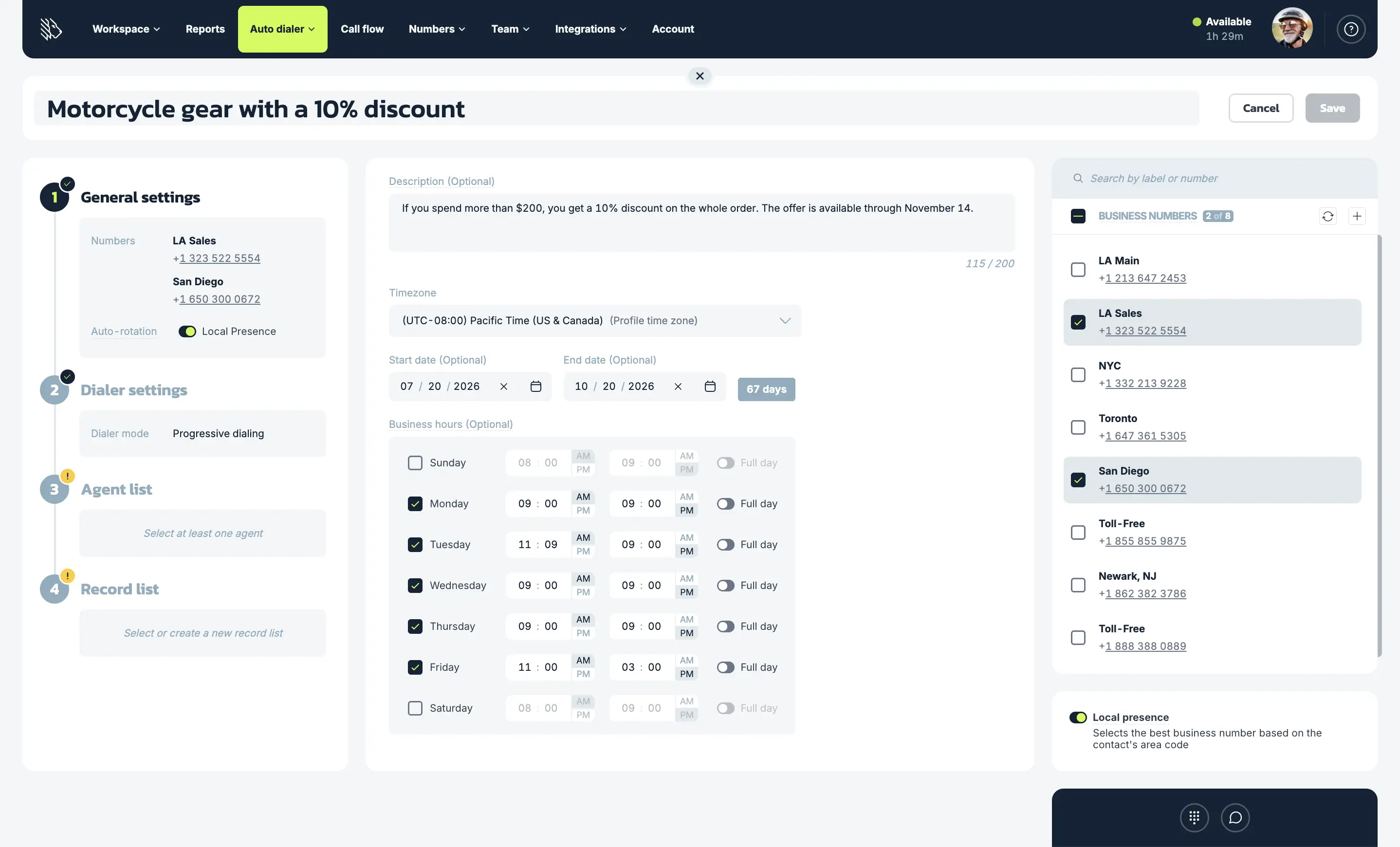
1. Set up general campaign settings
On this page, you will name the campaign, add a description, set campaign times, including how long it will last, what times of day calls will go out, and time zones. You will also select the business numbers your agents will be using to call.
Once you select your business numbers, Local Presence turns on automatically. When possible, it matches the outbound number to the prospect’s area code, helping your calls look local and increasing the chances that prospects will answer.
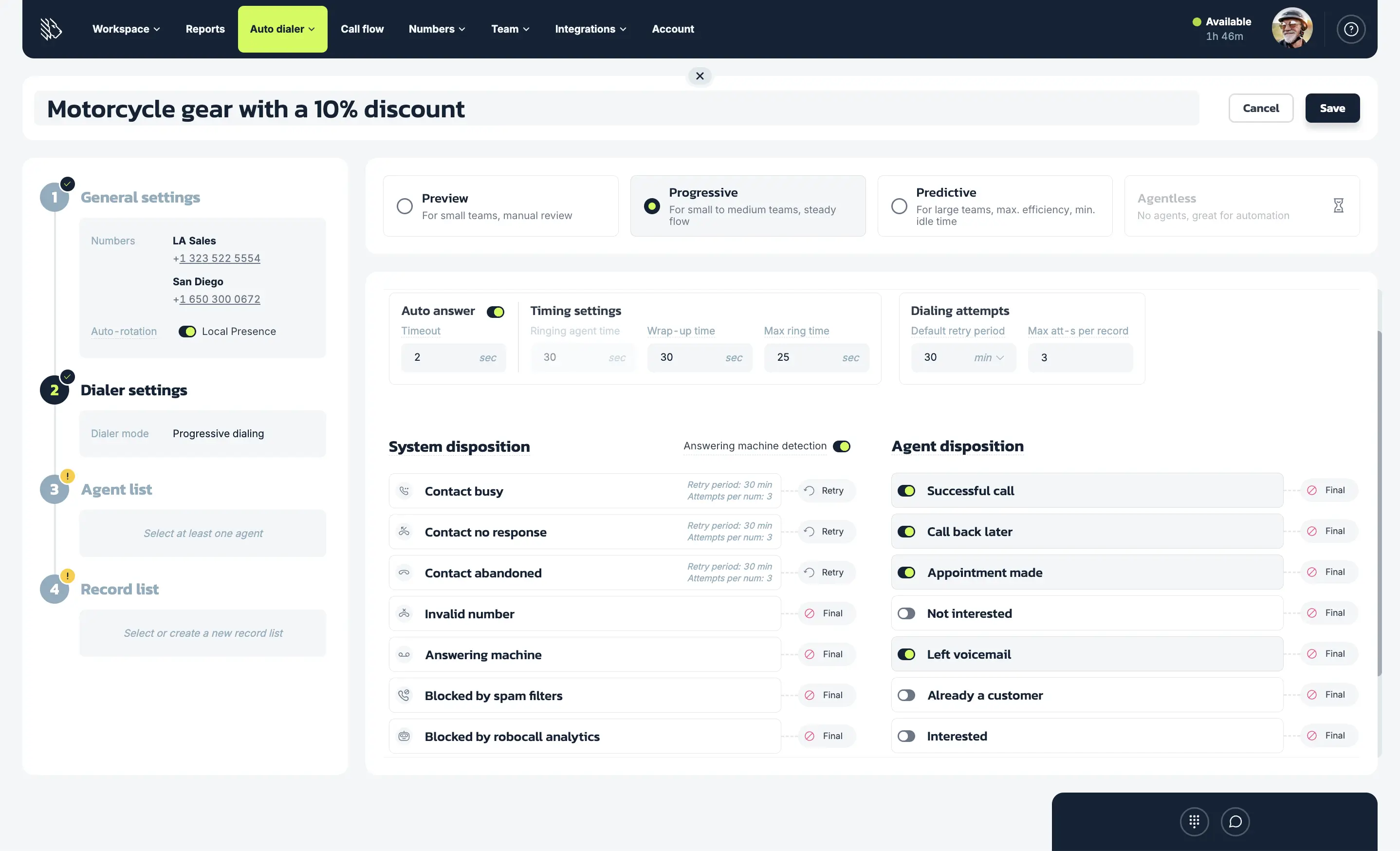
2. Set the progressive dialer settings
Here, you will select the type of dialer you want to use, in this case, progressive, and continue with its settings:
- Auto answer: Set a time after which agents are automatically connected to live calls, so they do not need to click the Answer button.
- Ringing agent time: this tells the dialer how long it will spend reaching an agent
- Wrap-up time: here, the dialer learns how long it should give an agent after a call to do wrap-up work
- Max ring time: this setting tells the dialer how long it should spend ringing a given contact
- Default retry period: the dialer will wait to call a contact again for as long as you set here
- Max attempts per number: the dialer will stop trying to contact someone once it has reached the number of attempts you have designated
3. Configure system and agent dispositions
Below the Dialer settings, you will also see Disposition settings. These are important to pay attention to when you turn on progressive dialing, as they let you customize what happens next after calls with different outcomes.
System disposition
When calls cannot be completed due to technical reasons, such as:
- Contact busy
- Contact no response
- Contact abandoned
- Invalid number
- Answering machine
- Blocked by spam filters
- and Blocked by robocall analytics
All of these can be the end result: the system marks the call outcome, and that’s that. Or you can also have the system retry again later. For this, choose the aptly named “Retry” option. After a set period of time, the system will try to connect with that contact once more.
You can also decide how the campaign should handle voicemail with AI Answering Machine Detection. When AI AMD is enabled, the system identifies voicemail and answering machines before the call reaches an agent. That way, agents spend their time speaking with real people instead of waiting through voicemail greetings. Any calls identified as voicemail or answering machines will follow the system disposition rules you set.
And if leaving voicemail is part of your campaign, you can use Voicemail Drop. Instead of saying the same message again and again, agents can leave a prerecorded voicemail with one click.
Agent disposition
This is a list of call outcomes that your agents can see after finishing calls and choose the best-fitting option. You can enable some of the default ones, like “Interested” or “Call back later,” or add your own, tailored to the campaign’s details, up to 30 agent dispositions in total. The customizable retry option is also available here.
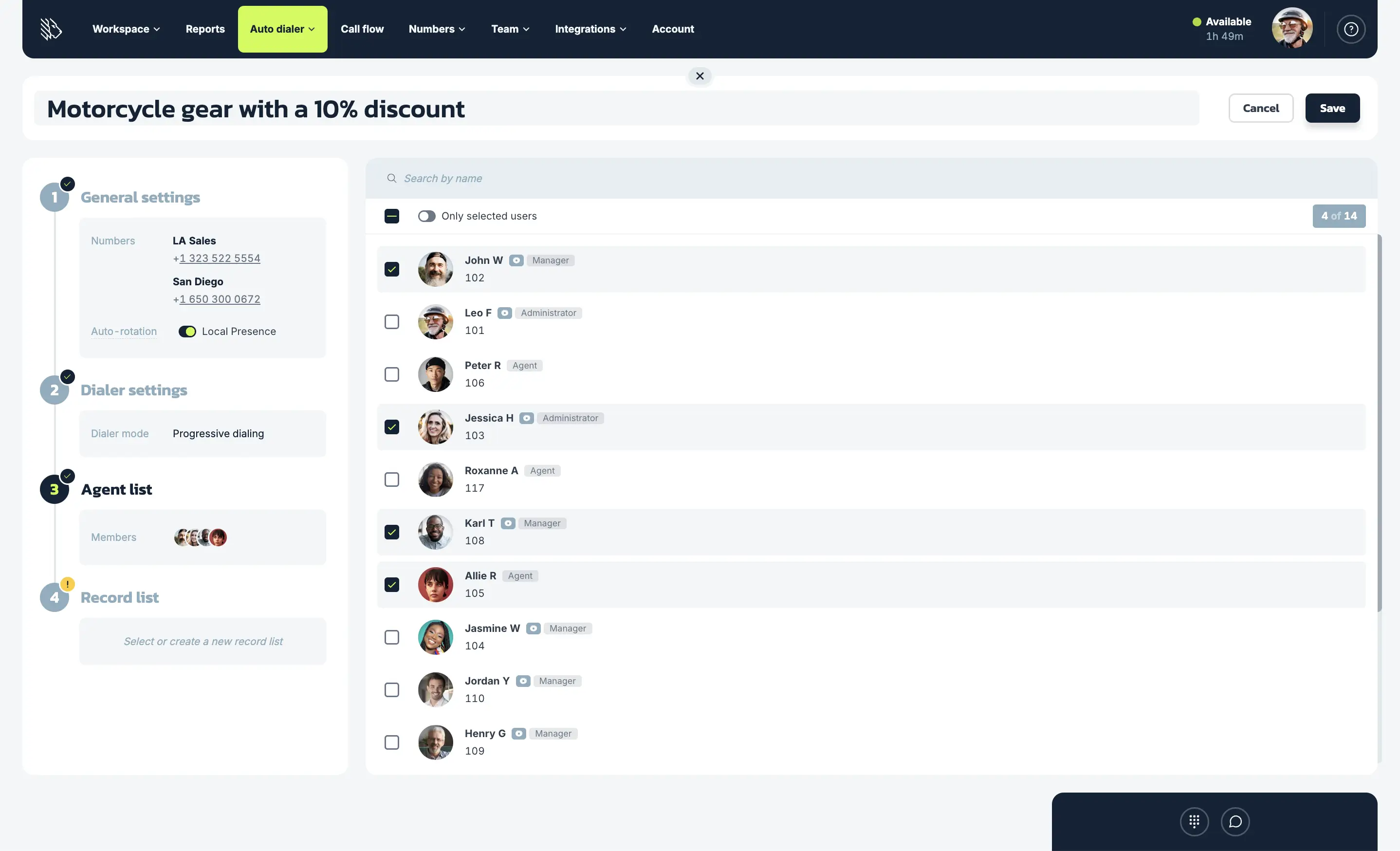
4. Add agents to the campaign
Assign the agents who will take part in this campaign.
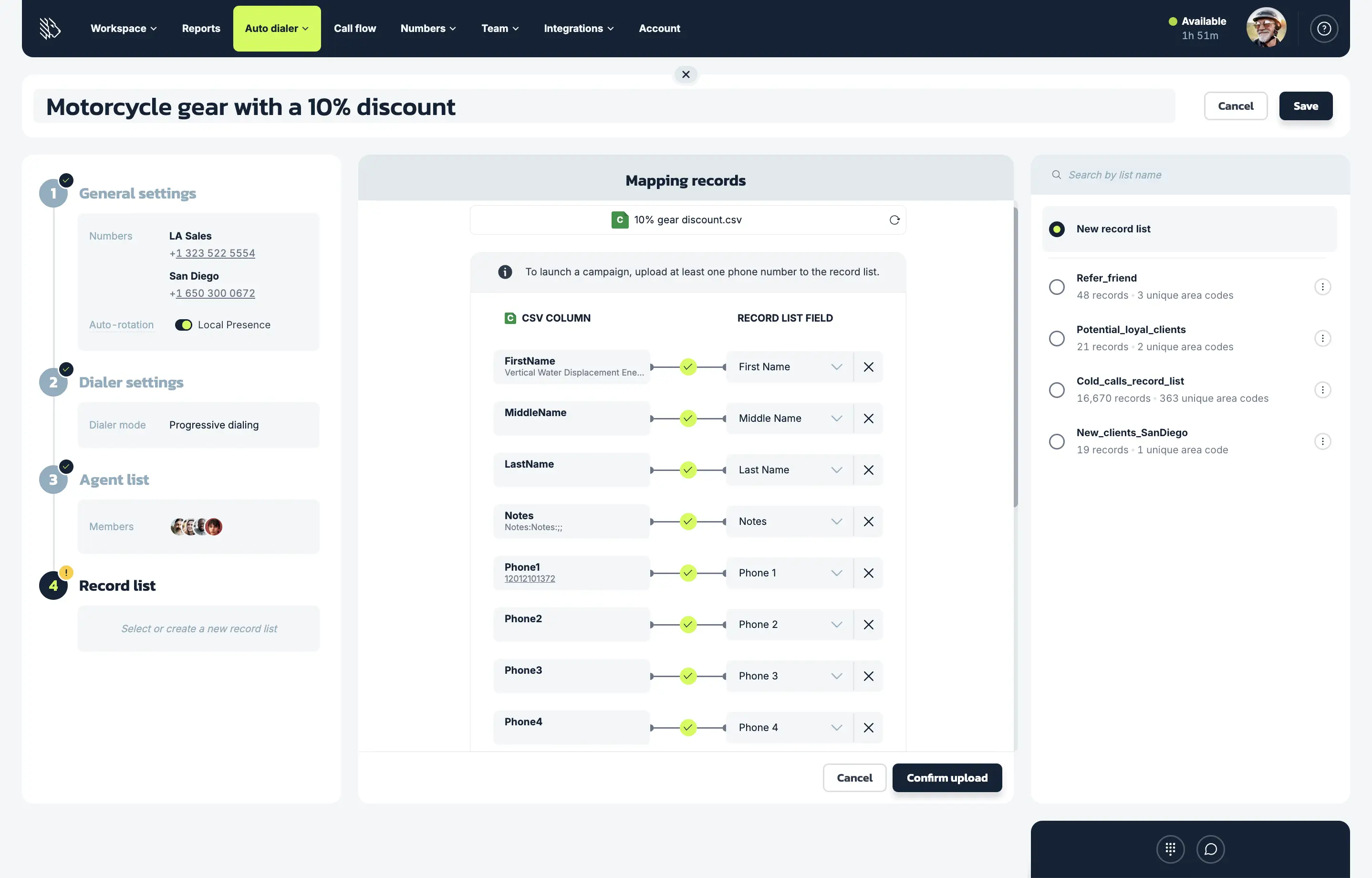
5. Upload or select a contact list
One of the most important parts of the progressive dialer setup process is the importation of the actual numbers you will be calling. Do so via a CSV file; if it is not perfectly formatted, MightyCall will automatically map it.
Once your record list is added, and Local Presence is turned on, you can review your coverage score. This shows how many of your contacts’ area codes can be matched with the local numbers available in your account.
A green score means your number coverage is strong. A pink score means coverage is limited, so adding more local numbers may help your calls appear local more often and improve pickup rates.
How to manage progressive dialer campaigns
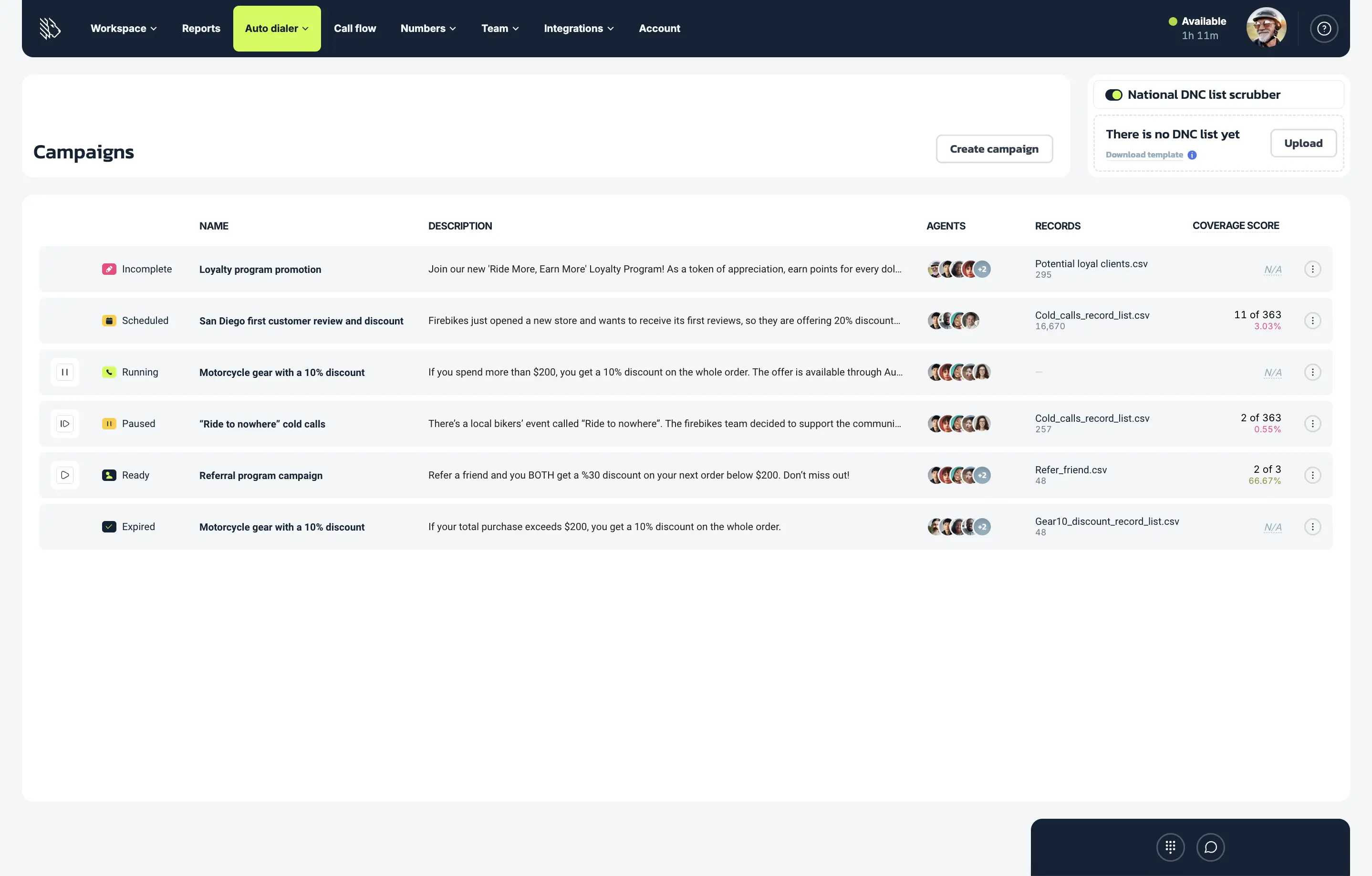
Once your campaign is set up, you can manage it from the Campaign dashboard. Here’s what you can do there:
Track campaign statuses
Each campaign will display one of the following statuses:
- Ready: The campaign has been fully set up and can be launched.
- Incomplete: Some required setup steps still need to be completed.
- Preparing: The uploaded record list is being processed.
- Running: The campaign is active, and calls are being placed.
- Paused: The campaign has been stopped temporarily.
- Completed: The campaign has finished calling through the list.
- Scheduled: The campaign is planned to start later.
You can start, pause, or resume campaigns directly from the Campaign dashboard with one click.
Edit campaigns
Not every campaign can be edited in the same way. Completed campaigns cannot be changed. Running and paused campaigns allow only certain updates, such as changes to general settings, selected dialer settings, and the assigned agents.
Watch your number reputation
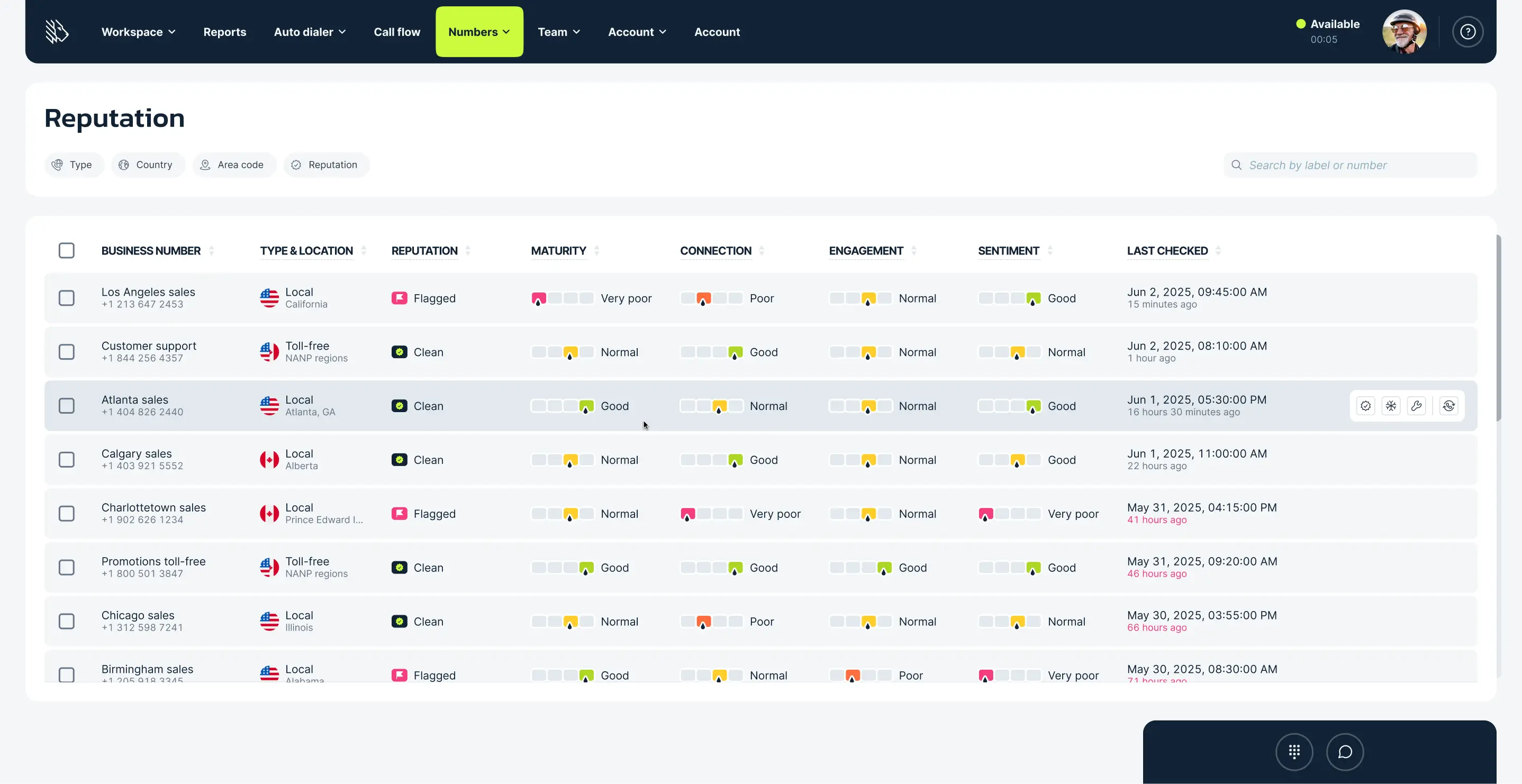
DID Reputation helps you check the condition of the business numbers used in your outbound campaigns. It can show when numbers may be flagged, blocked, or less likely to connect. This makes it easier to choose stronger numbers for your campaigns and improve the chances of your calls being answered.
Watch the full setup process in this video explainer:
Limitations
Just like any dialer, your progressive dialer setup is not going to be able to do everything. Here are a few limitations to keep in mind:
- The dialer will not make more calls than there are agents: If you have three agents on a campaign, the dialer will only make three calls at a time. It will not go beyond that (if you want that, look into predictive dialers).
- Limited prep time for agents: With a progressive dialer, agents are brought into the call once a live person or voicemail answers. This keeps the campaign moving, but it gives agents little time to review contact details before the conversation begins. If your team needs more time to prepare before each call, a preview dialer may be a better choice.
- File size: The CSV file cannot exceed 100 MB.
Best practices for setting up progressive campaigns
- Give your agents some breathing room: make sure to let your agents have a long-enough wrap-up time to finish the tasks they need to do.
- Don’t forget about time zones: Calling too late or too early in the day can violate calling regulations, and it can also annoy the people you are trying to reach. When making calls, pay attention to the contact’s time zone, especially if it is different from your own.
- Use the Do Not Call Scrubber: Ignoring the national Do Not call List can put you in legal jeopardy. But by turning on the DNC Scrubber option, you can make sure numbers on the list are automatically skipped by the dialer.
- Don’t forget state DNC lists: Some states, like Pennsylvania, have state Do Not Call lists. These are not synced with the national list, so make sure to do your research.
- Keep your internal DNC list updated: When someone asks not to be contacted again, add them to your Internal or Local DNC list so the dialer skips them in future campaigns. Agents can add numbers right after a call, making it easier for your team to respect opt-outs and reduce unwanted outreach.
- Set up Voicemail Drop messages before the campaign starts: If your team plans to leave voicemails, prepare prerecorded messages for the most common situations ahead of time. This gives agents ready-to-use options and helps them choose the right message for each call outcome.
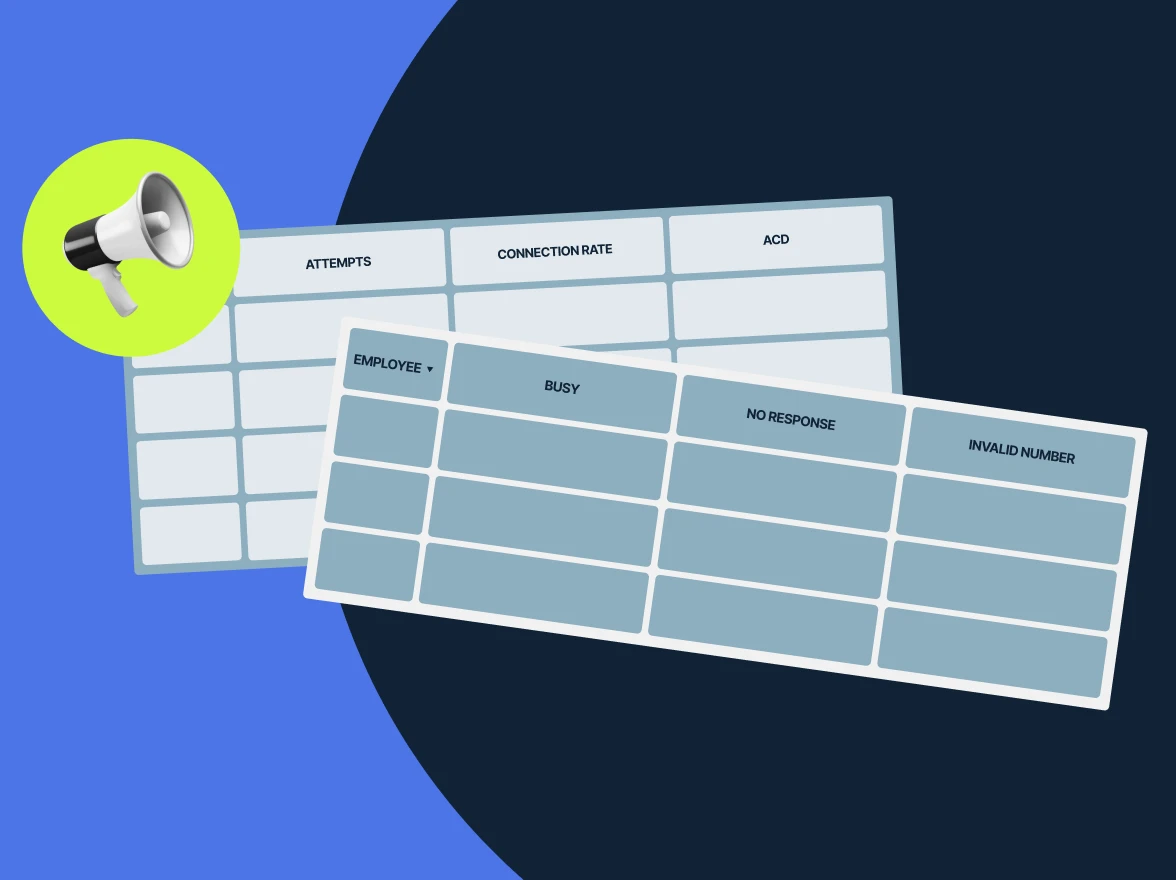
- Check out the campaign reports: The progressive dialer gives you after-action reports which can help you to better prepare for your next call campaign.

Avoid spamming your contacts: a delay of 1 to 2 hours between each unsuccessful attempt is a good practice to respect your customers and prevent your business numbers from being flagged as spam. — Nick Kalinin, Product Manager at MightyCall
A progressive calling setup can help speed up your campaigns
Enable progressive dialing in order to call more people at a faster rate and to keep your agents going at their maximum potentials. Instead of wasting time between calls, agents are automatically connected to the next contact as soon as they become available. This creates a smoother calling experience, increases productivity, and helps your team reach campaign goals faster without adding extra complexity to their workflow.