
By setting up preview calling, you give agents more control over the calling process while still keeping outbound campaigns organized and automated. Before each call, agents can review the contact’s details, understand who they are about to speak with, and prepare a more relevant approach.
How to set up a preview dialer
Installing the preview dialer takes just minutes and will pay dividends for your (and your agents’) future endeavors. While each provider’s dialer is different, MightyCall’s takes just a few steps to get going:
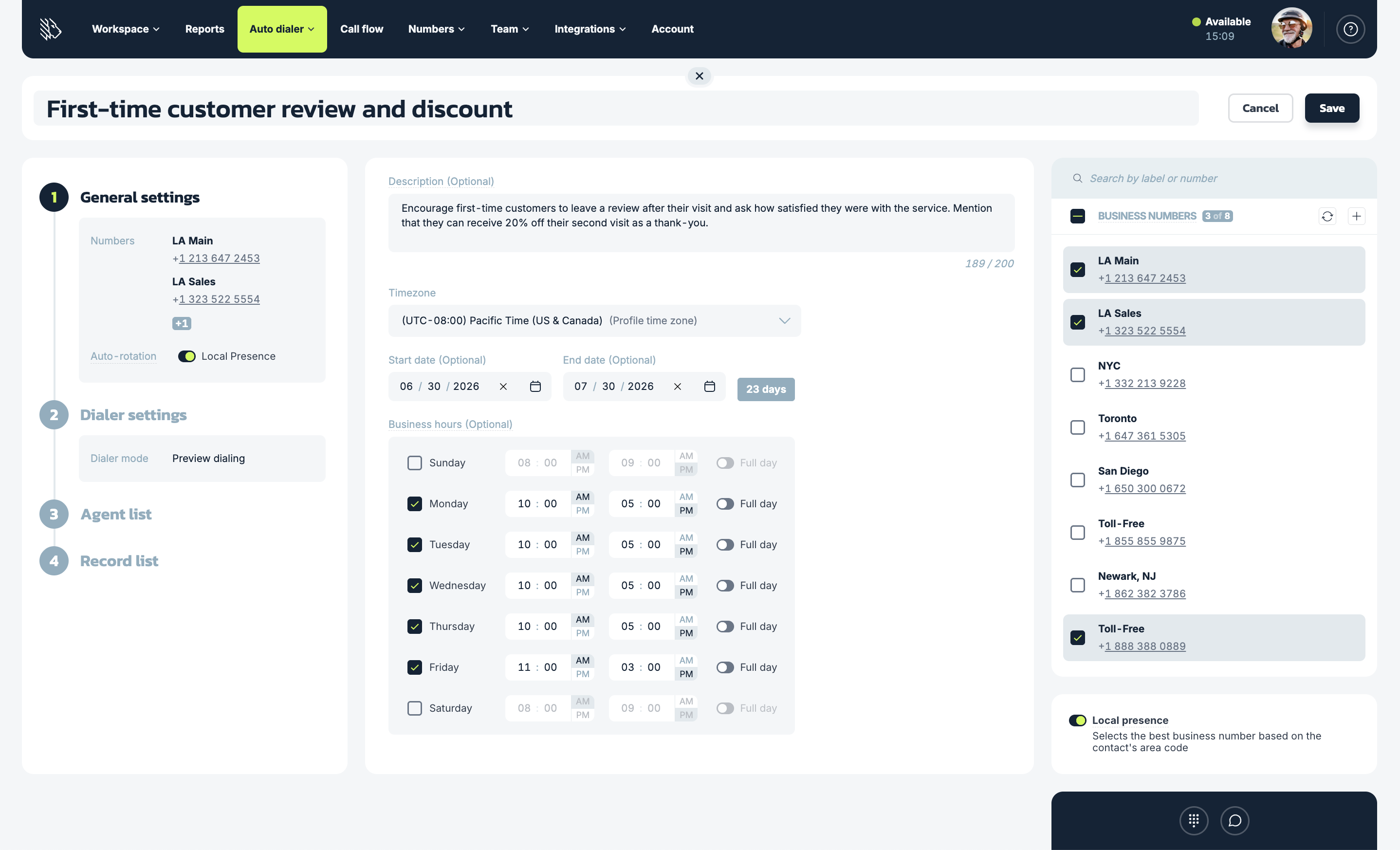
1. Start with the general settings
This will tell the dialer the most essential information: the campaign’s name and description, when calls will be made, which time zone the campaign will follow, and which number(s) will be used to make the calls. For campaigns that target contacts in different areas, enable Local Presence to make outbound calls feel more familiar by displaying a local area code.
2. Set up the dialer settings
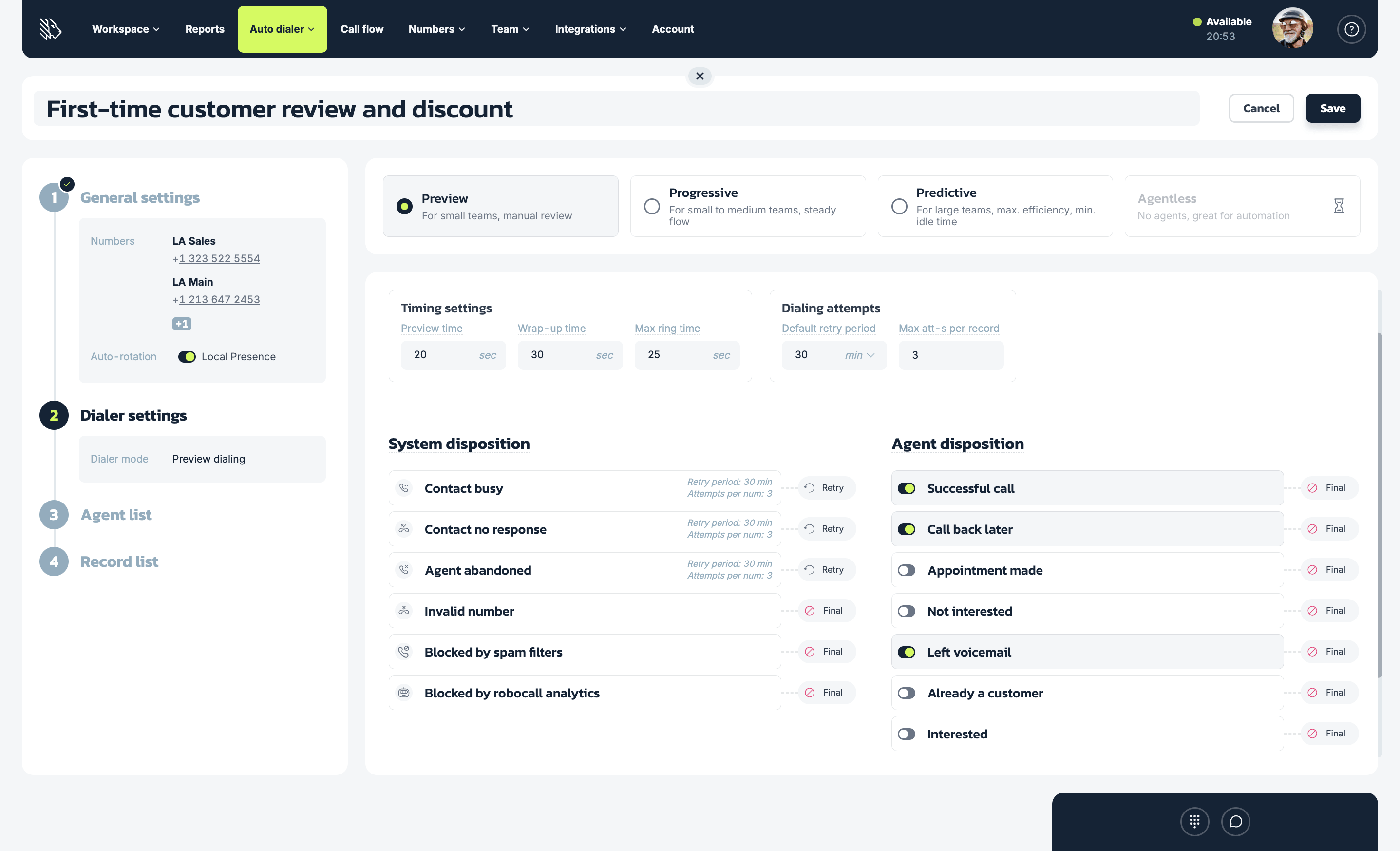
Next, you get more into the specifics. Select the type of dialer – in this case, Preview, though you can also select Progressive or Predictive – and then set the dialer metrics:
- Preview time: here, you can decide how many seconds agents can have to preview information about the contact before deciding whether or not to make the call
- Wrap-up time: this is for after the call; your agent reports how the call went and, if necessary, adds the number to the Do Not Call list
- Max ring time: how long the dialer will spend attempting to connect to a number on the list
- Default retry period: if a contact does not answer, you can tell the dialer how long to wait before offering the contact for another call attempt
- Max attempts per number: finally, to ensure that you are not spam calling, you can put a limit on how many times the dialer will attempt to contact a number

An agent being well-prepared is 50% of the reason a call succeeds. That’s why setting the appropriate duration for preview time is crucial. The time set should be sufficient for the agent to familiarize themselves with the contact. – Nick Kalinin, Product Manager at MightyCall
3. Configure call dispositions
At the bottom of the screen, you will see two types of disposition settings: System and Agent.
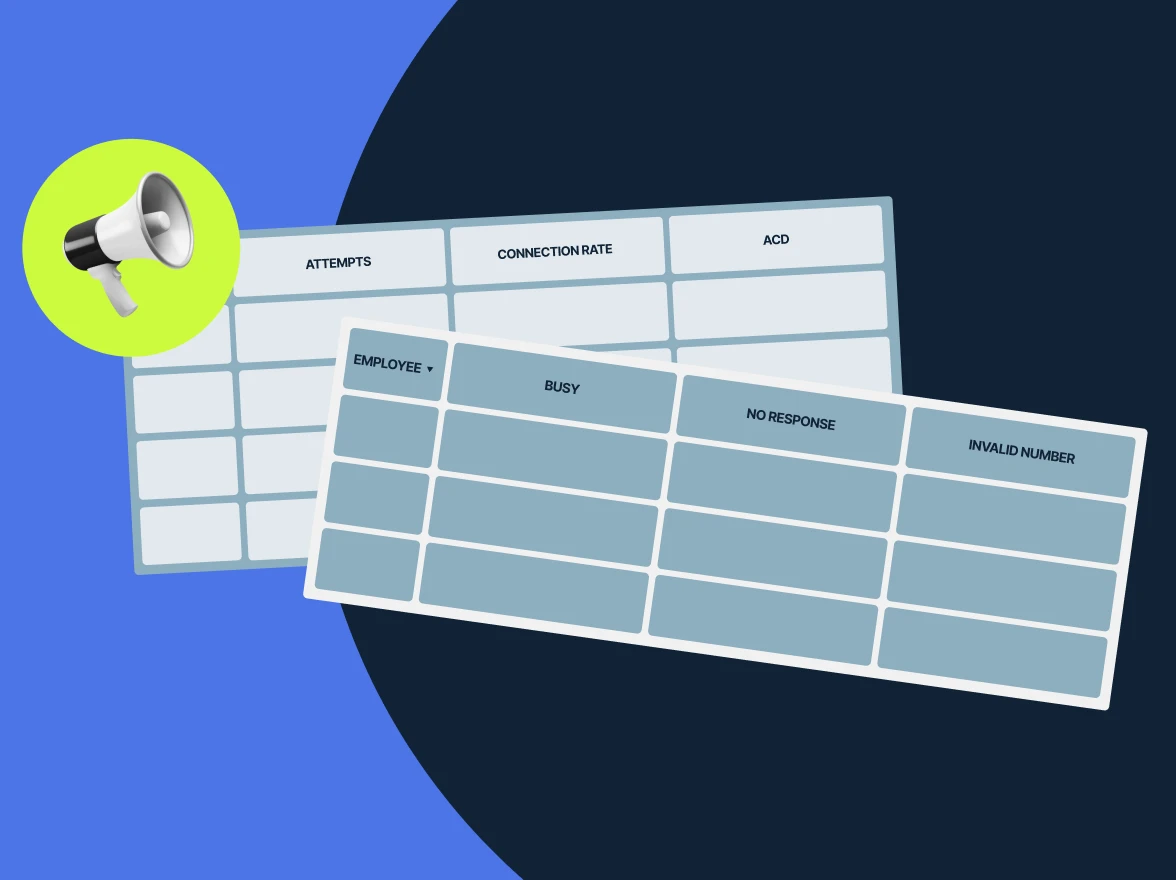
The system disposition is where you decide what happens to calls that don’t connect. You see some predefined call outcomes such as
- Contact busy
- Contact no response
- Agent abandoned
- Invalid number
- Blocked by spam filters
- Blocked by robocall analytics
For each of them, you can choose whether this outcome is final, meaning no actions will be taken after that, or if you want to proceed with trying, choose the ‘Retry’ option and the number will be dialed again. You can also set up custom rules for each disposition retry.
The agent disposition is where you can add and modify the call outcomes that your agents can select after completing a campaign call, dispositions which are then seen in the campaign reports section. You can enable some of the default ones or add your own tailored for the campaign’s details–up to 30 agent dispositions in total.
The customizable retry option is also available here. When setting up agent dispositions, keep your campaign goals in mind, as these dispositions will be the main criteria you use to analyze your preview dialer campaign.
4. Select your agents
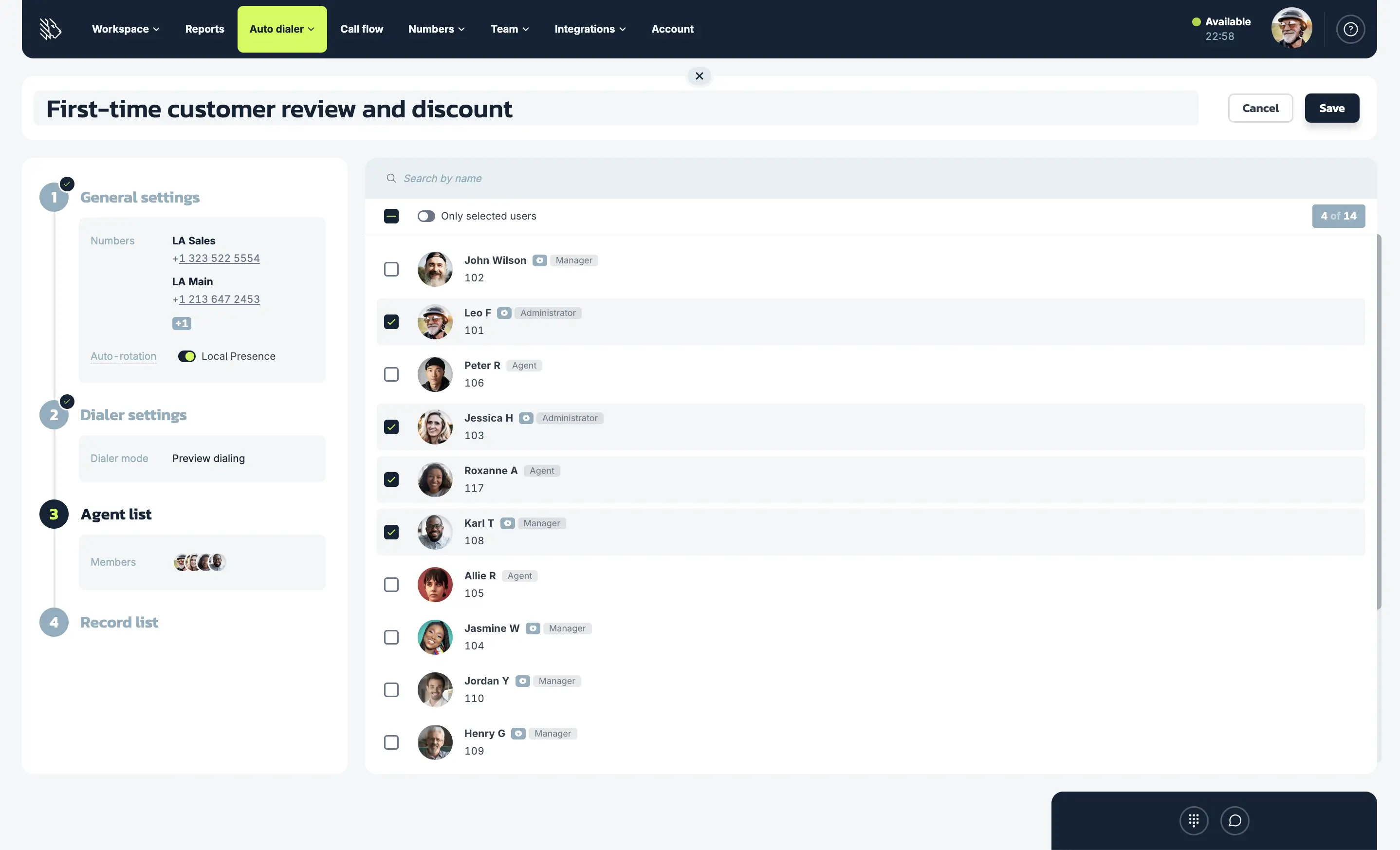
This step is straightforward: pick the agents you will be assigning to this campaign by checking the boxes next to their names. Be sure to prioritize agents who have previous experience with some of the customers on your list, as preview mode is all about a personalized approach.
5. Upload your contacts
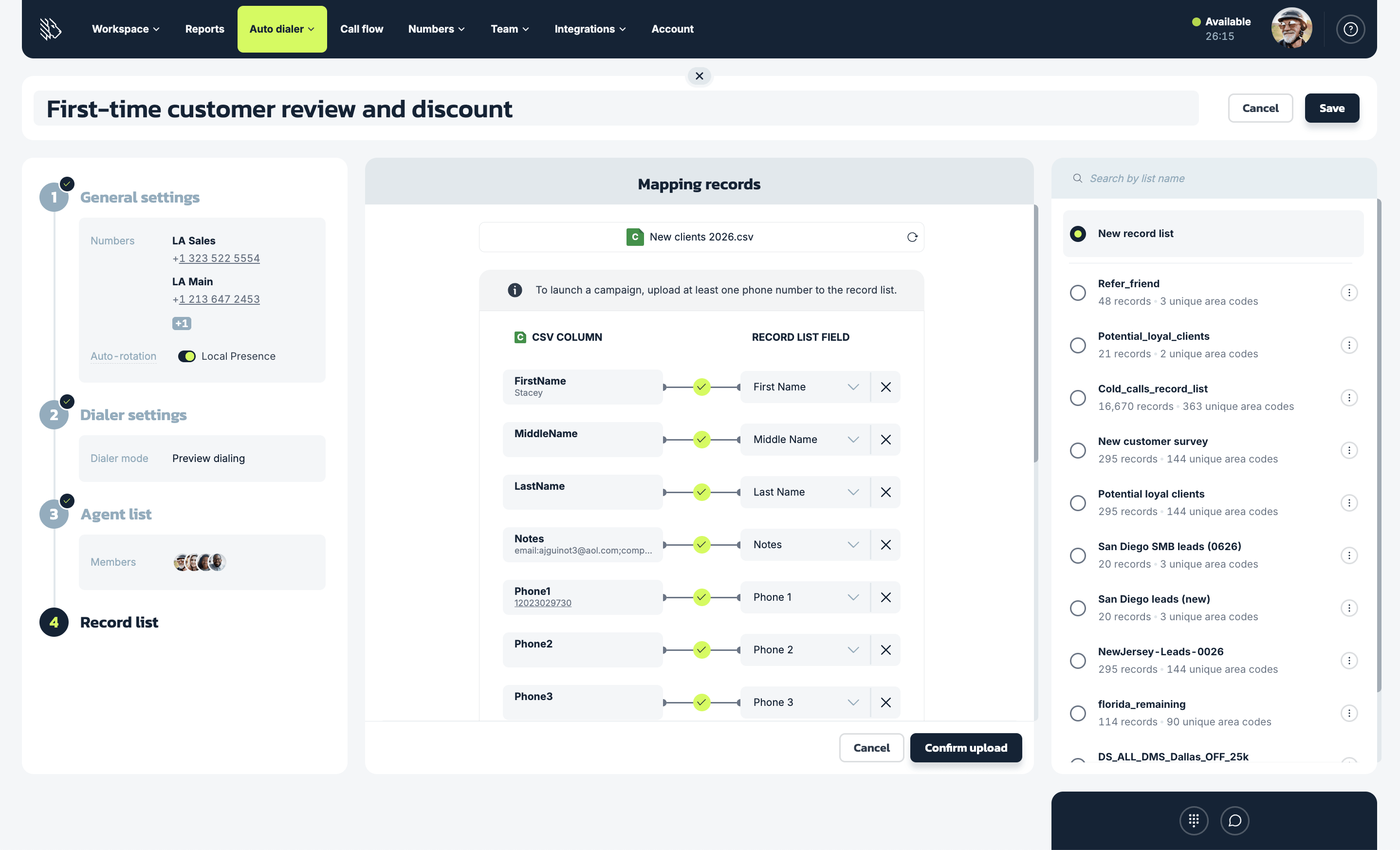
The last step is to upload the actual numbers your dialer will be calling. You can do this with a CSV file. If the file is not perfectly formatted, don’t worry, MightyCall will automatically map the fields for you.
After uploading your contact list and enabling Local Presence, check the Coverage Score to understand how well your available numbers match the area codes in your campaign. This helps show whether your calls are likely to appear with a familiar local number.
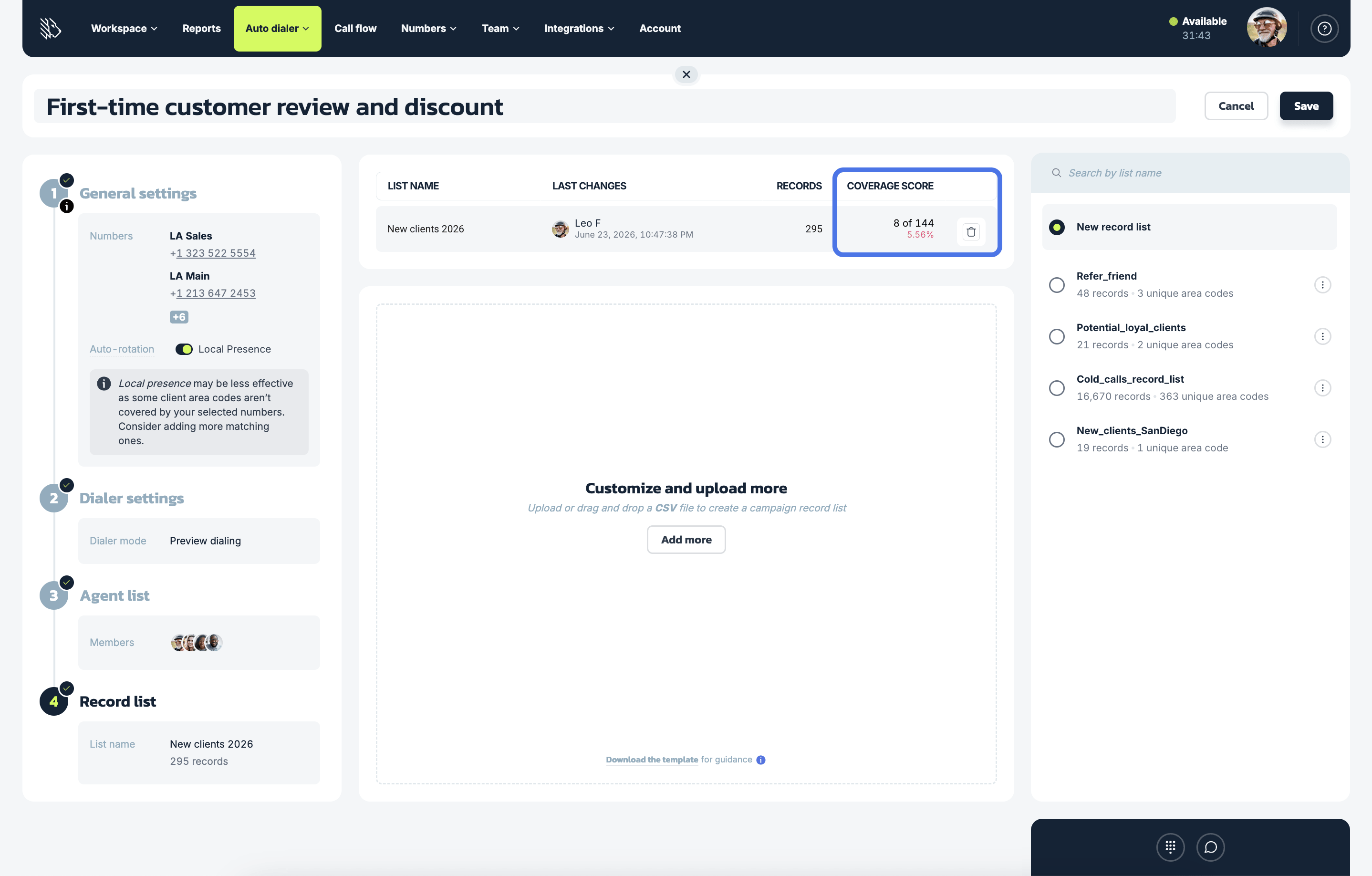
A green score means you have strong coverage across your contact list. A pink score means some regions are not covered yet, so adding more local numbers can help more calls appear local and potentially improve answer rates.
How to manage preview dialer campaigns
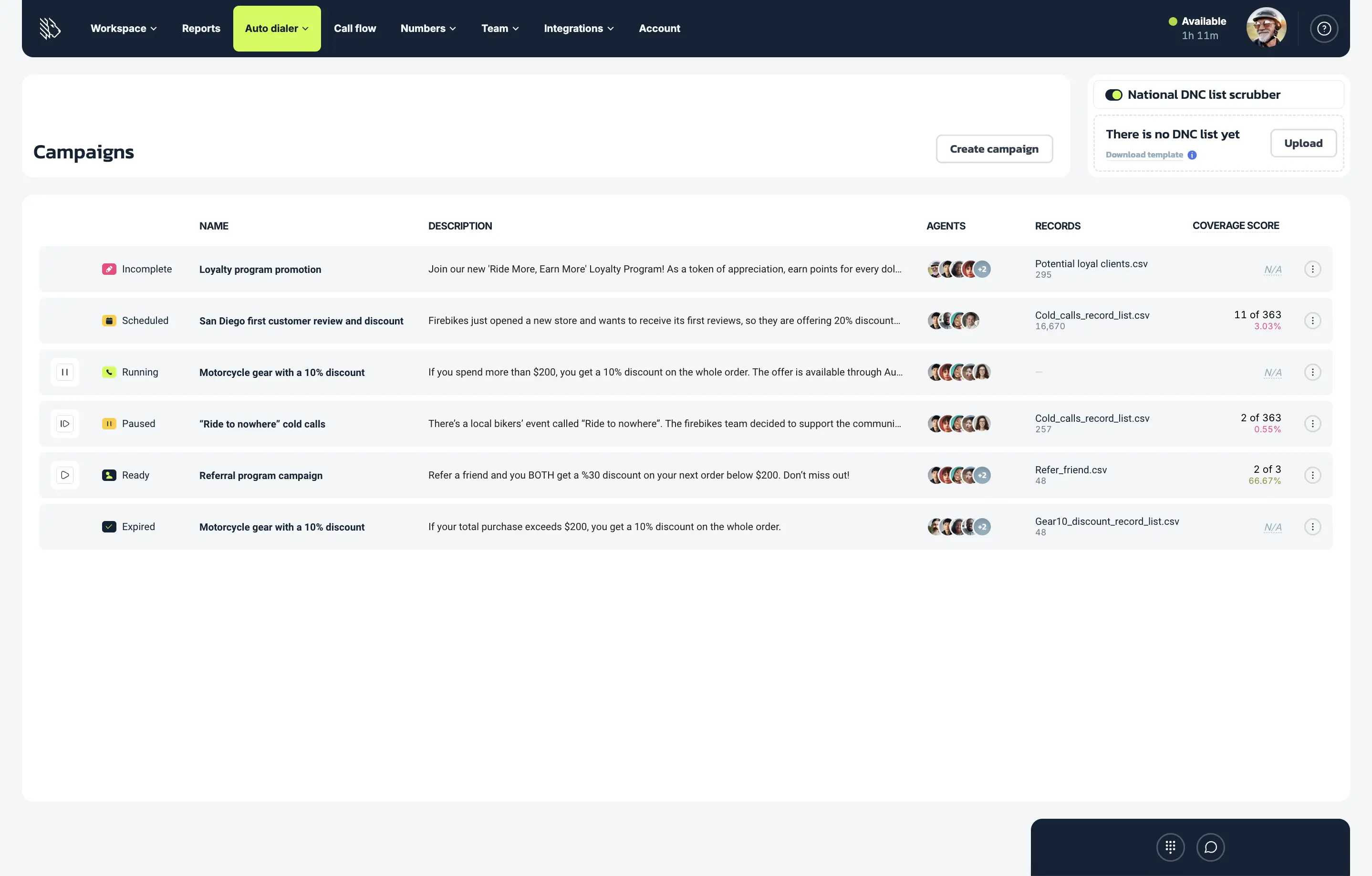
After your preview dialer campaign is created, you can control and monitor it, along with your other campaigns, from the Campaign dashboard.
Here’s exactly what you can do:
1. Check and change campaign statuses
Each preview campaign will show one of the following statuses:
- Ready: The campaign setup is complete and the campaign is ready to start.
- Incomplete: Some required setup steps are still missing.
- Preparing: The uploaded contact list is still being processed.
- Running: The campaign is active, and call requests are being offered to agents.
- Paused: The campaign has been temporarily stopped.
- Completed: The campaign has finished going through the contact list.
- Scheduled: The campaign is set to start at a later time.
From here you can start, pause, or resume your campaigns.
2. Edit campaign settings
Campaign editing options depend on the campaign status. Completed campaigns cannot be edited. Running and paused campaigns may allow only limited changes, such as updates to general settings, selected dialer settings, or assigned agents.
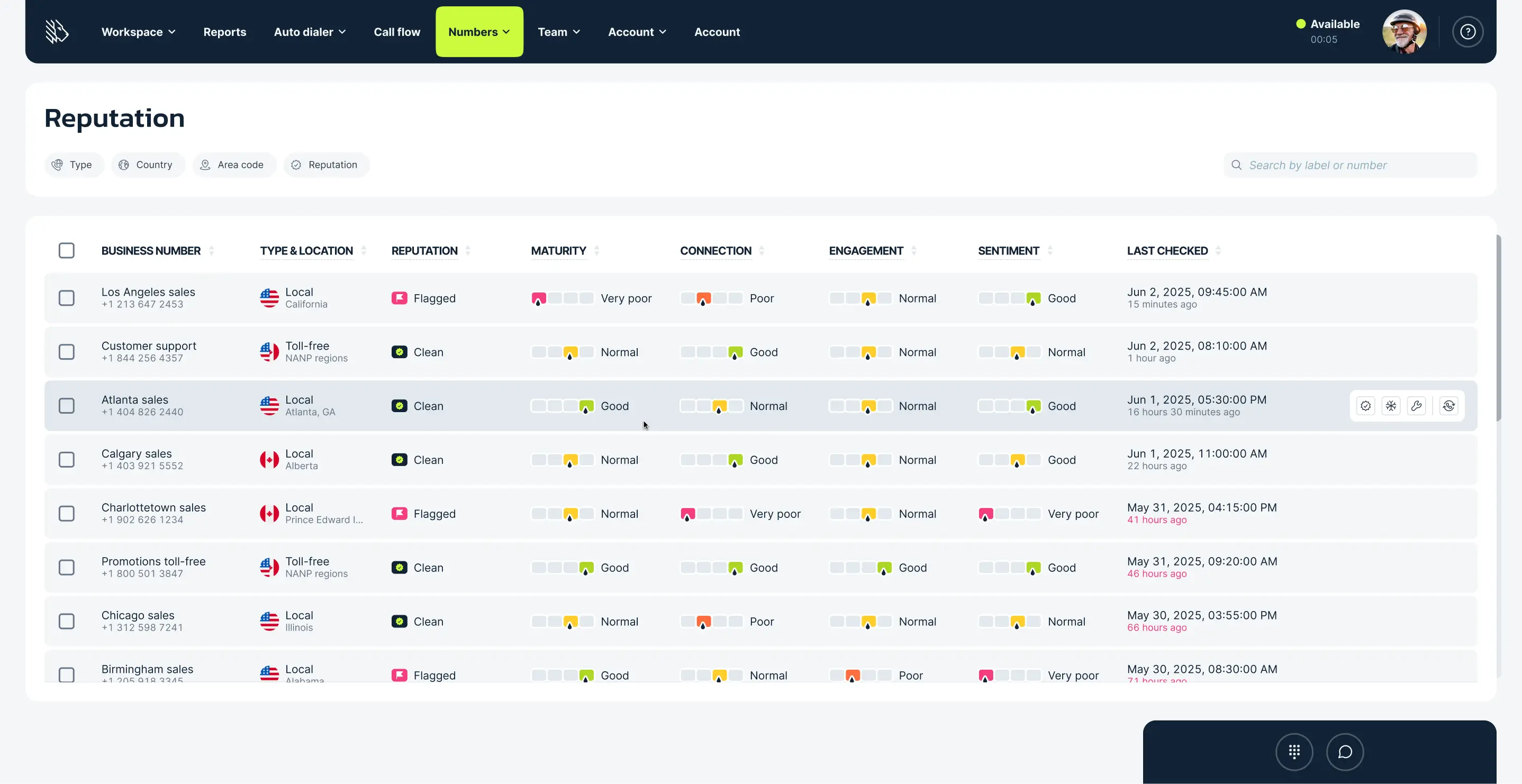
3. Monitor number reputation
DID Reputation helps you keep track of the health of the business numbers used in your outbound campaigns. It can show when numbers may be flagged as spam, blocked, or less likely to connect. This helps you identify potential issues early, choose stronger numbers for your campaigns, and improve the chances of your calls being answered.
Watch the full setup process in this video explainer:
Limitations
There are only a few common-sense limitations to keep in mind when you turn on preview dialing:
- The dialer won’t call until the agent agrees: In preview mode, agents must approve each call before dialing starts. This gives them more control, but it can slow down the campaign. For faster, more automated calling, consider Progressive or Predictive dialers.
- Agents cannot pass around calls forever: The dialer is going to seek to call every number on the list (unless it hits the max attempts per number). So if an agent passes on a number, and other agents pass on that number, the dialer will eventually bring the number back around to the first agent.
- Calls cannot be assigned to specific agents: Since preview dialer calls are distributed automatically, only add agents who are ready to handle any conversation within the campaign.
- AI Answering Machine Detection is not available for preview dialing: Preview dialer does not support AI AMD because agents manually approve each call and stay involved as the call connects, whether it reaches a person or voicemail. If you need to increase call volume and automatically filter out voicemails, Progressive or Predictive dialers may be a better fit.
- Keep CSV file size in mind: Before uploading your contact list, make sure the CSV file is under 100 MB. Larger files may take more time to upload and process.
Best practices for setting up preview campaigns
- Don’t overdo the preview time: The longer the preview time, the less calls will be made; it’s important to take advantage of it, but do not set it overly high.
- Check your Local Presence coverage: If you enabled Local Presence in the first step, review your Coverage Score in the fourth step of the dialer setup to see how many contact area codes match your available numbers. To improve answer rates, add more business numbers for regions that are not covered yet.
- Use Voicemail Drop to save agent time: When a call goes to voicemail, agents can drop in a pre-recorded message instead of recording the same message again and again. This is especially useful for preview dialing because there is no way for it to filter out voicemails automatically.
- Use the Do Not Call Scrubber: To help maintain compliance, be sure to turn this option on. It will “scrub” any numbers it detects which are on the National DNC Registry.
- Keep state registries in mind: cross-reference your upload list with state Do Not Call lists, as these can differ from the federal listings.
- Read the campaign reports: A useful aspect of the preview dialer setup is the fact that it gives you information about the campaign after it is over; read these to discover how you can make things better the next time around.
- Remember time zones: calling people after a certain time is not only considered rude, but it can also be illegal; make sure to keep this in mind if you are calling outside your own time zone.
Enable preview dialing and personalize your call campaigns
The details matter when running a call campaign, which is why an effective preview dialer setup gives you more control over those details. By showing agents who they are about to call before the conversation starts, preview dialing helps them make each interaction more personal without requiring them to manually search for numbers or manage the campaign on their own.