
What is call transfer?
Call transfer is moving a phone call from one person to another without making the caller hang up and dial again. It helps customer calls go smoothly, whether you’re passing them to a colleague down the hall or someone across town.
Why it matters: It cuts down on wait times, reduces customer annoyance from repeating details, and helps agents handle their specialties instead of juggling everything.
The result? Faster resolutions and happier callers who actually get the help they need.
Types of call transfers:
- Warm (attended) transfer: You talk to the receiving agent first, share the background, and only then transfer the call.
- Cold (blind) transfer: You send the call straight through without checking in advance.
Why call transferring matters when volume is high
High call volumes can quickly turn into chaos if transfers aren’t handled well. Customers get sent to the wrong person, have to explain their issue over and over, sit on endless holds, or – worst case – get cut off entirely. Nobody wants to feel like they’re on a wild goose chase just to get basic help.
Those everyday headaches add up fast:
- Customer satisfaction takes a hit
- Handle times stretch out longer than necessary
- Sales calls drop off before closing
- Supervisors get pulled in for escalations more often, and some frustrated customers just walk away for good.
Keep an eye on metrics like average handle time (AHT), transfer counts, and first-contact resolution rates to see where things improve. A solid cloud phone system turns transfers into something simple and trackable. When calls are flying in, teams need reliable handoffs to keep service sharp and customers coming back. A business phone system makes transferring a call effortless—and measurable.
How does call transfer work?
Transferring a call on your office phone should feel natural and reliable, no matter if you’re on your desk phone, computer, or mobile. Generally, the steps on a given call transfer feature are as follows:
- Get the call: Agent 1 picks up the phone.
- Hold: Agent 1 puts the customer on hold, connecting to Agent 2.
- Transfer: The caller is then transferred to another agent (our Agent 2). Agent 1 hangs up.
What the customer experiences:
- A short, polite hold if needed, maybe with music.
- A clean pickup by the next person, no need to recap the whole story.
Choose the right call transfer method for every situation
Picking the best transfer method means balancing quick routing with a more personal touch. Not every call needs the same approach. Instead, call centers should match the method to the moment for better results. Fortunately, MightyCall offers you three choices: warm transfers, cold transfers, and automatic routing rules.
- If priority is smooth handoff and full context → go with warm transfer.
- If priority is getting the call moving fast → go with cold transfer.
- If priority is cutting down manual work → set up automatic rules.
Warm call transfer for higher customer satisfaction
Warm transfer (also known as attended) shows real care by letting the customer know they’re in good hands. You put the caller on hold briefly, chat with the next agent to pass along details and confirm they’re ready, then make the connection.
- Callers repeat themselves less, which saves time and cuts irritation.
- Resolutions happen quicker because the new agent starts informed.
- VIPs or tricky cases get handled with the attention they deserve.
Best for detailed support questions, important clients, or sales calls where details matter.
Cold call transfer for speed and simplicity
Cold transfer (also called blind) is your go-to for fast redirects when you need to transfer a phone call quickly. You send the call directly without talking to the recipient first. It’s perfect for fixing a wrong department or simple routing.
- Handles quick corrections without extra steps.
- Keeps agents free for the next call in busy times.
- Works well when context isn’t critical.
When the call really matters or experience counts, switch to warm instead.
Rules that route callers automatically
Automatic rules take the guesswork out of routing by directing calls based on what the caller needs from the start. Use interactive voice response (IVR) menus and smart flows to handle calls to your business phone number consistently without agents jumping in every time.
- Press 1 for billing → straight to the billing team.
- After hours → voicemail or on-call service.
- VIP numbers → priority queue or specific agent.
- Busy agents → overflow to the next available person.
- Language selection → right team member.
These setups shorten wait times, reduce manual transfers, and give every caller a predictable, professional experience.
How to transfer a call to another phone with MightyCall?
MightyCall keeps transfers easy whether you’re working from the desktop app, webphone, or mobile. The interface is clean and consistent, so you can handle calls without fumbling around.
How to perform a cold transfer?
- At the bottom of your call flow chart, you’ll see the end-user who will receive the call. By default, that’s the main user.
- To change this setting, click on the small Action menu icon (seven dots in a circle). You will see nine different options for how to handle the call from a cell phone or any other device in use.
- You can choose any of the following transfer options:
– Call to user: the call will be transferred to the teammate you select;
– Call to group: the call will be transferred to an entire group, such as the customer support department;
– Call to queue: the call will be transferred to a group of choice, but first placed in a queue, to remain there until an employee answers the call or the caller hangs up;
– Call a non-MightyCall number: call any external number.
Keep in mind this can lead to repeats or voicemail if the person isn’t available.
How to perform a warm transfer?
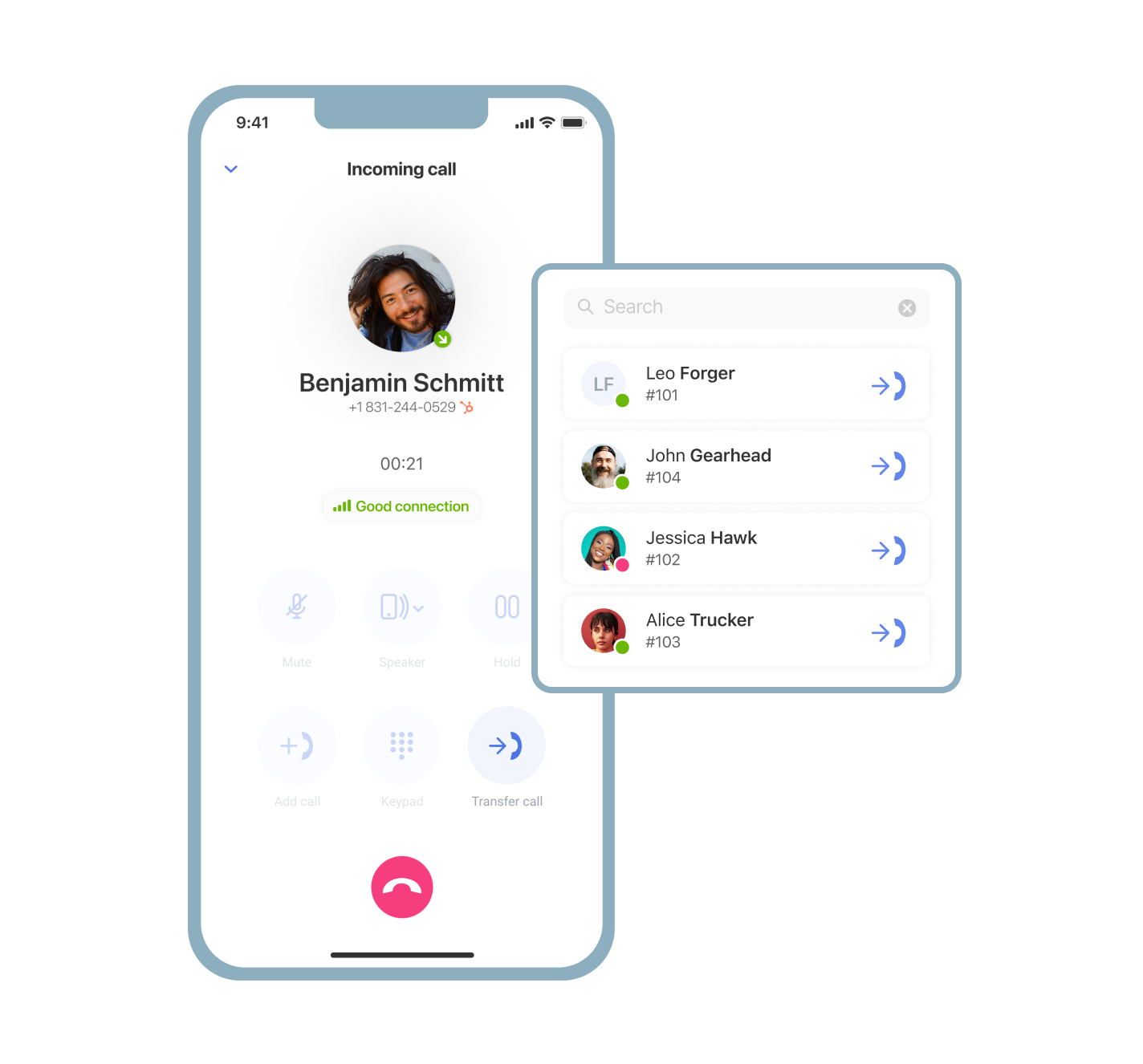
- Click the “Transfer Call” icon;
- Check your team members’ availability status (green, yellow, or red);
- Choose your team member in the menu that opens up or dial a phone number via Dial pad;
- Make sure you get a notification that states the call got transferred successfully.
Always pass along the important details first. It’s good call management, as it makes the handoff feel seamless.
How to transfer a call to an external number?
- During a call, hit the transfer button.
- Press the dial pad.
- Dial the number you want to transfer the caller to.
This comes in handy for remote team members, managers away from their desk, or bringing in outside partners when needed.
What happens if the recipient doesn’t answer?
Everyone steps away sometimes. MightyCall has built-in options to catch those moments so callers aren’t left in the lurch.
- Route straight to the recipient’s voicemail for a message.
- Bounce back to you, the original agent.
- Send to a queue or the next available person.
- Forward to a backup number or alternate path.
The caller always lands somewhere helpful—whether it’s leaving a message or getting picked up quickly—keeping things professional and frustration-free.
Core call handling features that improve productivity
MightyCall packs in tools that shave time off calls and make the whole process smoother for everyone involved.
One-click call forwarding across phone, desktop, and mobile devices
When agents get stuck at one spot, calls can be missed or lost when they move around. To avoid this, you can set forwarding with a single click to ring desk, mobile, or computer at the same time or in sequence. This lets you work from anywhere without gaps, easier setup for new hires, and faster overall response.
Availability-aware warm transfer to prevent dead ends
If transferred phone calls land in voicemail or get a busy signal, you can have really frustrated customers. But with real-time status, you can know if someone’s free before transferring the call. This means fewer bounces, higher first-contact fixes, and better satisfaction scores.
Transfer to voicemail and queues to protect the customer experience
If you or someone on your team doesn’t answer, it means dead air and hang-ups. But Auto-options can let callers leave a voicemail or wait in call queues; this keeps abandonment low and service consistent even when busy.
Auto routing with phone menu and intelligent call distribution
When you first get a call, your team can end up wasting lots of time figuring out where it has to go. But with multi-level menu options and automatic call distribution you can send callers by department, time of day, or load automatically. This means less manual sorting, shorter queues, agents tackle what they do best.
Context handoff so customers don’t repeat themselves
When your customer has to angrily say, “I already explained this,” it kills momentum, especially in escalations like billing to tech support. By adding notes or quick call summaries during transfers, you can ensure smooth continuity, speed things up, and boost resolution rates.
schedule your personalized demo with our amazing team

Use cases for customer support and sales teams
No matter what call transfer service you are using, speed and the right info make all the difference, whether you’re fixing problems or sealing deals.
Customer support: raise first-call resolution
Support calls cover everything from quick fixes to complicated troubleshooting. Warm transfers shine here by passing full context so agents resolve issues on the spot.
- More first-call fixes without callbacks.
- Shorter overall talk times.
- Customers walk away satisfied instead of frustrated.
Sales: transfer hot leads to the right closer instantly
In sales, every second counts. Don’t let a lead cool off with bad routing. Use cold for fast department shifts or external transfers to reach mobile closers.
- Quicker handoff keeps momentum high.
- Fewer lost opportunities from friction.
- Better close rates with the right person jumping in fast.
Growing businesses: professional call handling without a bigger headcount
As your team expands, overflow and after-hours calls pile up. Rules, queues, and shared numbers handle the load smoothly.
- Scale departments without rushing hires.
- Consistent routing every time.
- Professional feel that saves on staffing costs.
What is the difference between call forwarding and transfer?
Call forwarding sends incoming calls to another number before anyone answers, while transfer moves an active call that’s already in progress.
- Forwarding: Automatic rerouting for missed calls or overflow—great for keeping calls from going unanswered.
- Transfer: Live handoff during the conversation—protects ongoing discussions.
Most teams rely on both: forwarding catches what slips through, transferring handles what’s live. Together, they cover all bases.
Common call transfer challenges and how to solve them
Everyone understands that transferring calls is an imperfect art – but there are some problems which can be particularly obnoxious. Fortunately, where there are problems, there are solutions!
| Problem | Fix | Prevention tip |
|---|---|---|
| Dropped calls: Glitches or bad connections kill the call mid-transfer. | Get a service like MightyCall’s, which offers stable VoIP and high uptime. | Check your internet and test transfers periodically. |
| Misroutes: Customer ends up in the wrong spot and bounces around. | Build strong IVR menus and rules to route accurately from the start. | Keep your team directory up to date and train on quick checks. |
| Delays: Long holds during transfers wear on patience. | Use cold for basics or availability views for warm ones. | Add friendly hold music and time estimates. |
| Busy lines: The recipient can’t take the call right then. | Set call routing overflow to queues or next available agent. | Watch presence indicators before you transfer a live call. |
| Voicemail dead ends: Call transfer goes to voicemail with no follow-up plan. | Make sure to leave a note in the CRM reminding your team of the need to call back. | Stick to warm for anything sensitive. |
| Escalation overload: Too many transfers dump work on supervisors. | Give agents better notes and tools to resolve more themselves. | Review transfer logs regularly to spot training needs. |
MightyCall offers all of the above solutions so that you never have to worry about not having the tools to get calls transferred correctly.
Get started in minutes with call transfer software
Jumping into transfer software with MightyCall is straightforward: sign up, add your team and pick a virtual phone number, set up a few basic flows, and you’re transferring calls like a pro. No complicated setup or long training sessions: just practical tools that start working fast.
Want to see it in action and ditch the old frustrations? Grab a free trial or hop on a quick demo today.