
Setting up predictive calling for your call campaign takes next to no time at all, and the benefits can be huge, including faster outreach and higher agent productivity.
How to set up a predictive dialer
Different providers are going to have different setups. But MightyCall’s is incredibly straightforward and easy to use. Plus, once a campaign is set up, you can start it whenever needed without constant maintenance.
The steps for getting the predictive dialer setup are:
1. Set up general campaign settings
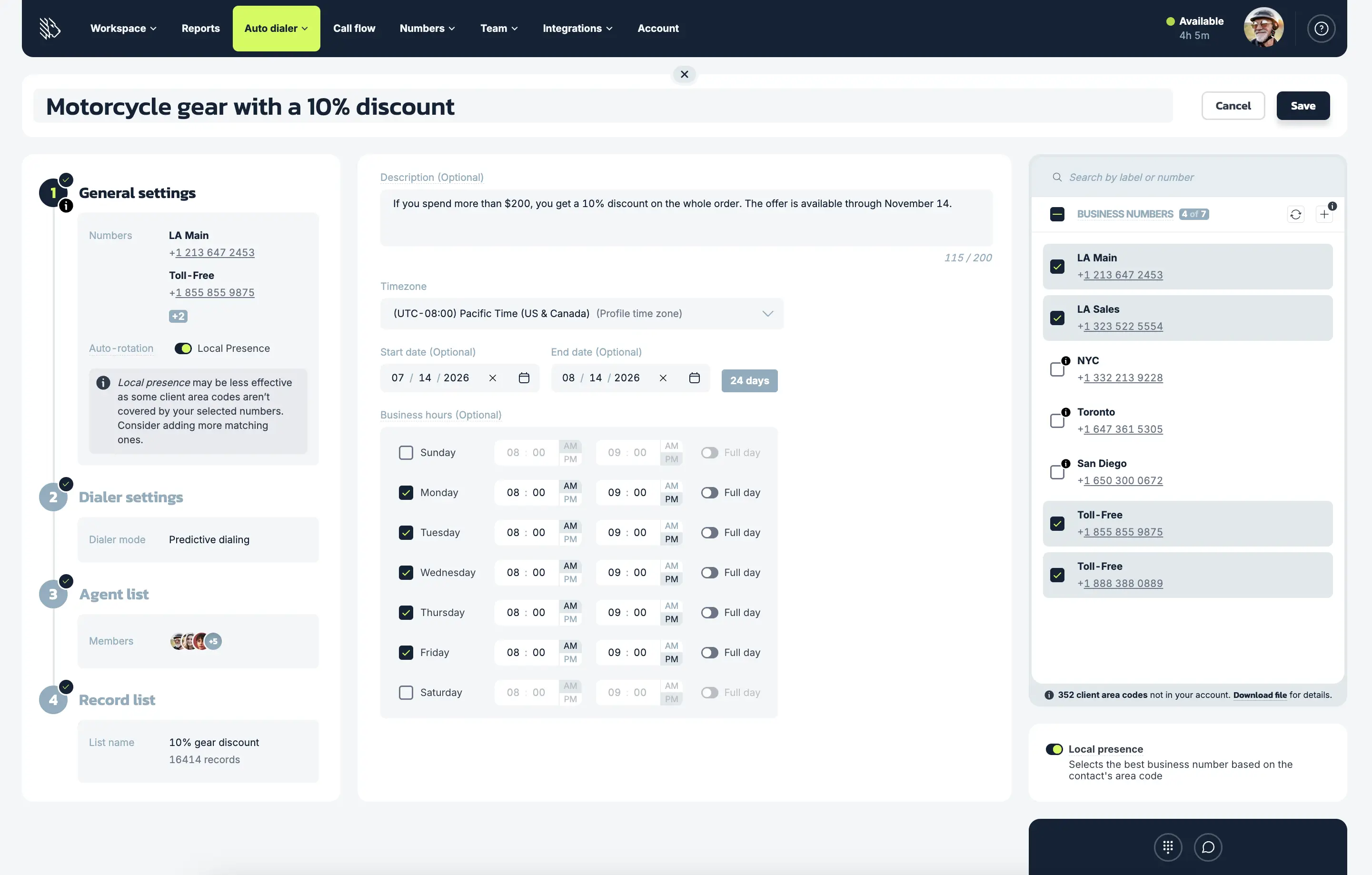
When you first begin your campaign, you will have to fill in a few basic aspects (the name, a description for your agents, the number(s) you will be using, time zones and start/end dates, and so on).
Once you select your business numbers, Local Presence is enabled automatically. This feature matches your outbound number to the prospect’s area code whenever possible, helping calls appear local and improving answer rates.
2. Configure predictive dialer settings
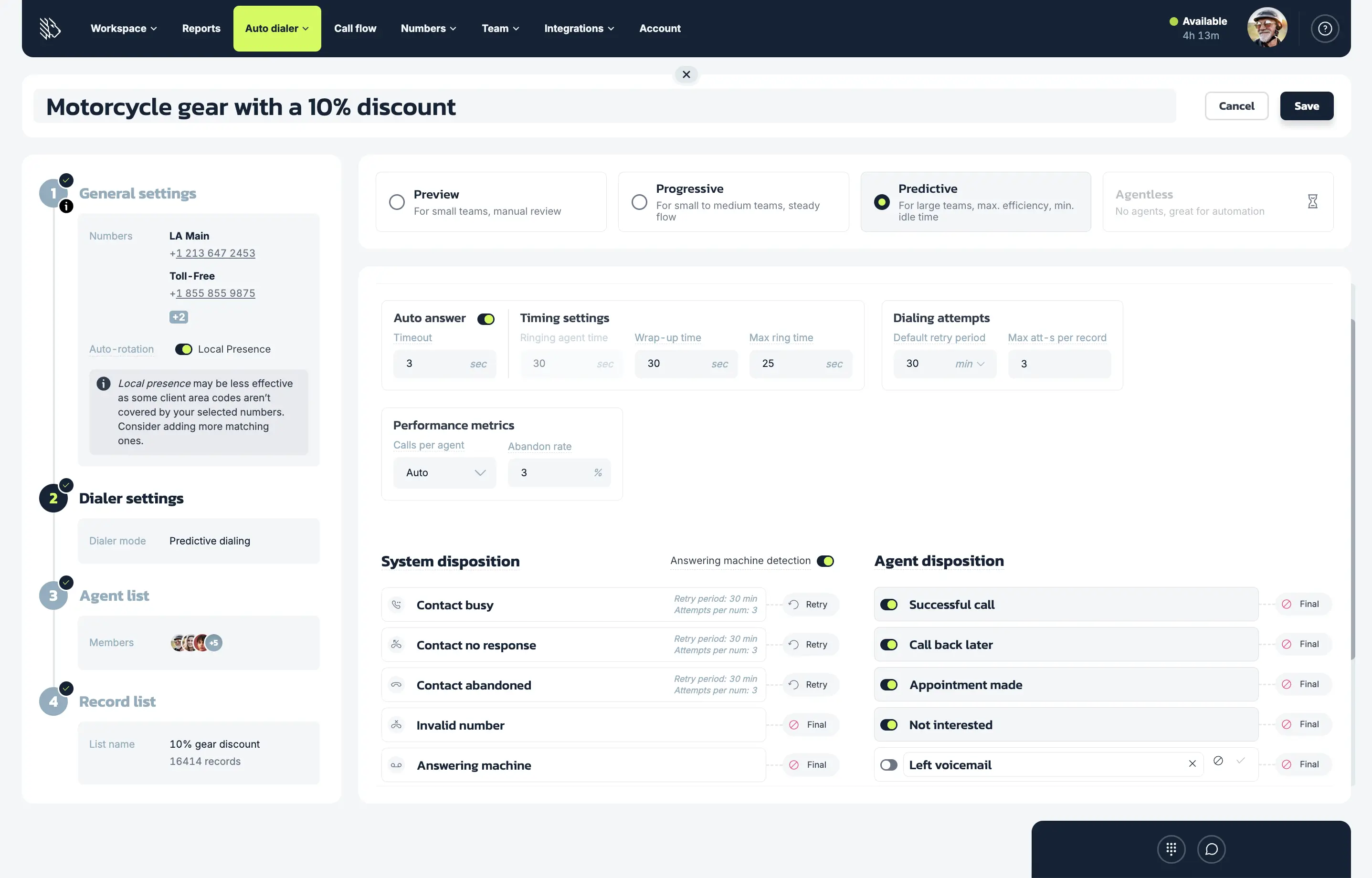
This may seem self-evident, but to enable predictive dialing, you will have to tell the predictive dialer what it has to do:
- Auto answer: Automatically connects agents to live calls after a defined wait time. No need to click the Answer button.
- Ringing agent time: the period of time when the system is trying to reach an agent with the contact already on the line
- Wrap-up time: The period after a call when agents can complete post-call tasks, including selecting a call outcome, adding notes, and performing follow-up actions before receiving another call.
- Max ring time is how much time is spent dialing a contact
- Default retry period is how long before we try calling the number again in case the contact wasn’t reached during the first time
- Max attempts per number is the limit on how many times we dial each number associated with the contact
- Calls per agent: Determines how many outbound calls the system can place for each available agent. When set to Auto, the predictive dialer automatically adjusts the calling pace based on real-time campaign performance to balance efficiency and abandonment rates.
- Abandon rate: the percentage of calls during which contact hangs up before the agent is connected to the call. It’s highly recommended to be 3% max.
Further down on the same page, you’ll see areas marked System disposition and Agent disposition settings. These are both important to helping your campaign become truly yours.
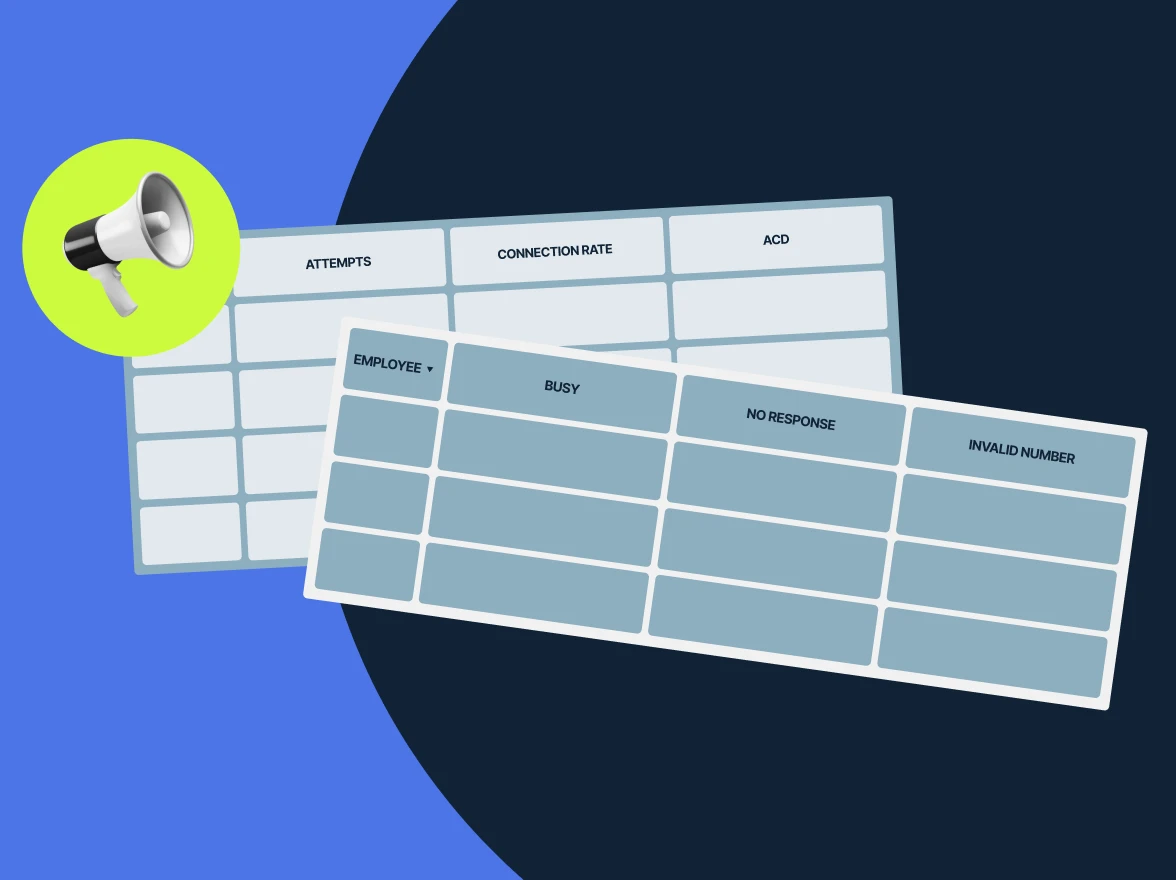
The system disposition is where you decide what happens to calls that don’t connect. You see some predefined call outcomes such as:
- Contact busy
- Contact no response
- Contact abandoned
- Invalid number
- Answering machine
- Blocked by spam filters
- and Blocked by robocall analytics
You decide whether the system will try to contact those numbers again. If you want them to, the “Retry” option will give you the chance to make that happen.
Another important detail here is AI Answering Machine Detection. Enable AI AMD to filter out voicemail and answering-machine calls, so agents are connected only to live contacts. Calls detected as voicemail or answering machines are handled automatically based on your system disposition settings.
If you do want to make voicemail part of your outreach strategy, use Voicemail Drop. This feature lets agents leave a prerecorded voicemail message with one click instead of repeating the same message every time.
By contrast, agent dispositions are call outcomes manually selected by agents after a call. You can create new dispositions, customize existing ones, and control which options are available for each campaign. These outcomes are reflected in the Dispositions report.
3. Select agents for the campaign
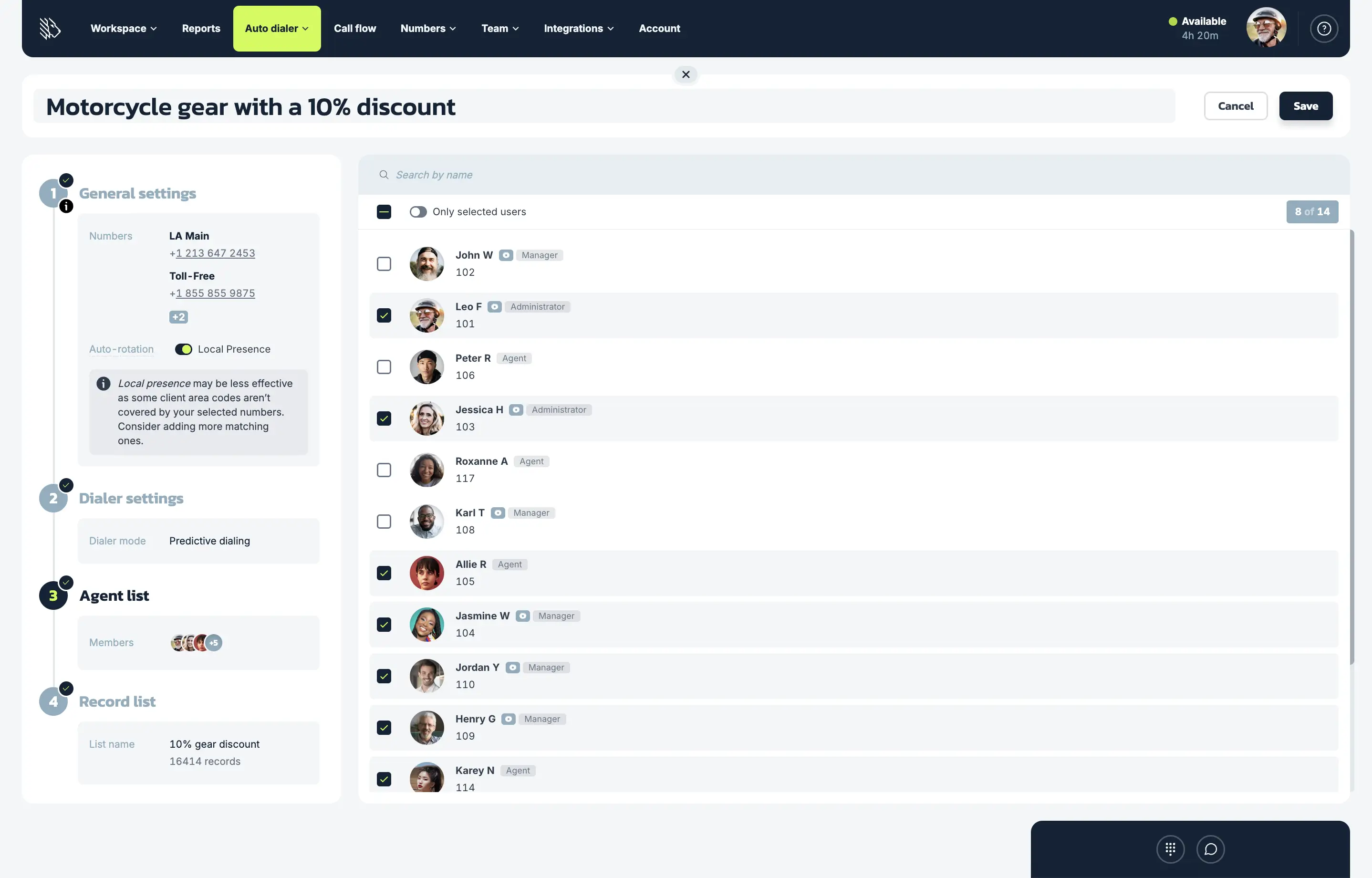
Next, you’ll be picking your agents. This is very quick: simply check the box next to the agents you want included.
4. Upload or select a record list
…and they can’t make calls if you don’t have numbers to call! Which is why the next step is to add a record list.
If you’ve already created record lists in MightyCall, you can simply select an existing one. Otherwise, upload a CSV file with your contacts. If your CSV file is set up differently than MightyCall’s template, the system will automatically map the fields for you.
Uploaded record lists can be managed directly in the system. You can add new records with duplicate checks, replace an existing list, export it as a CSV file, or delete it entirely.
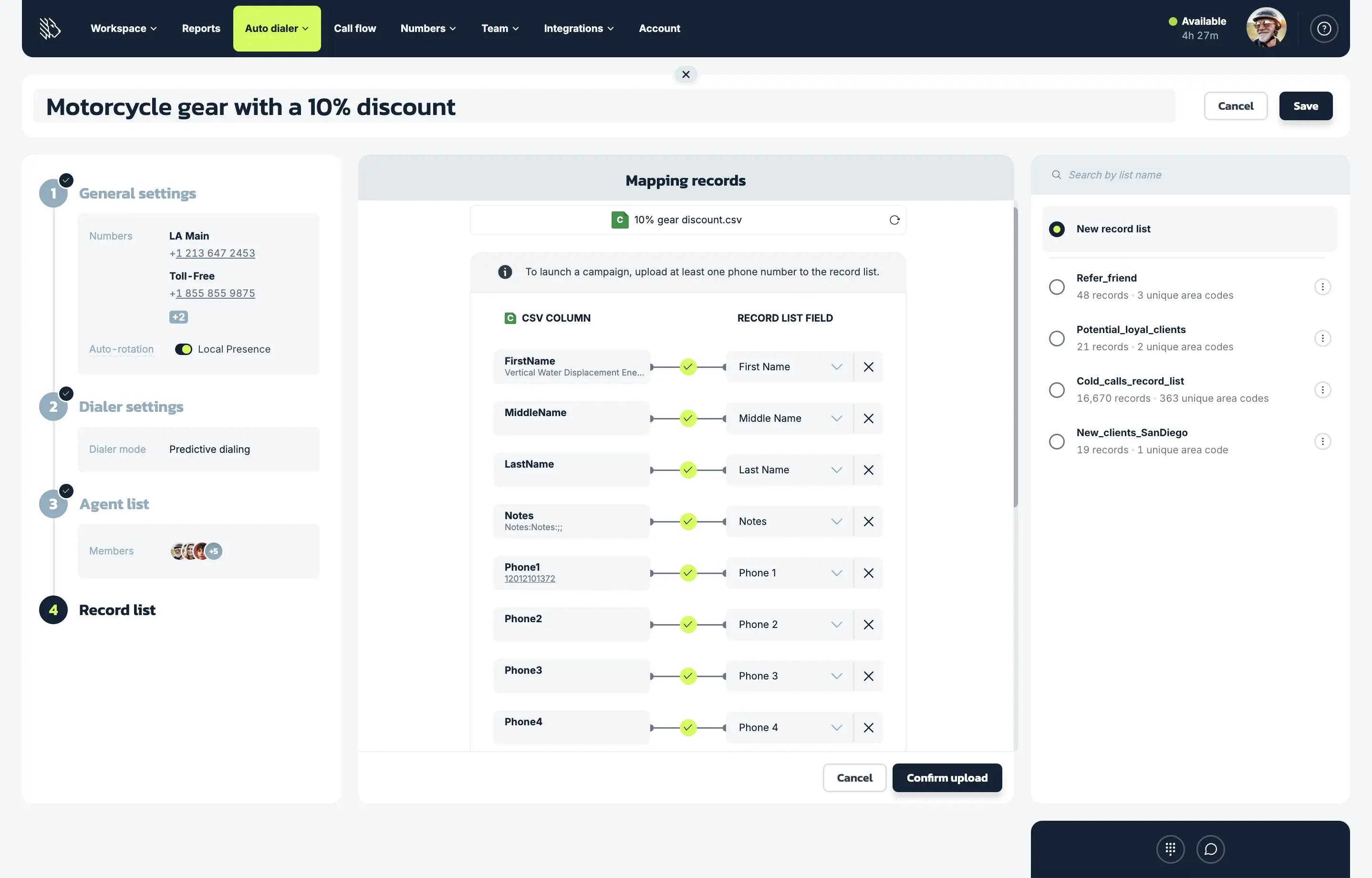
After uploading or selecting a record list, you can check your coverage score if Local Presence is enabled. This score shows the percentage of contact area codes covered by your available local numbers.
A green score indicates strong coverage, while a pink score suggests lower coverage and may indicate the need for additional local numbers to improve answer rates.
How to manage predictive dialer campaigns
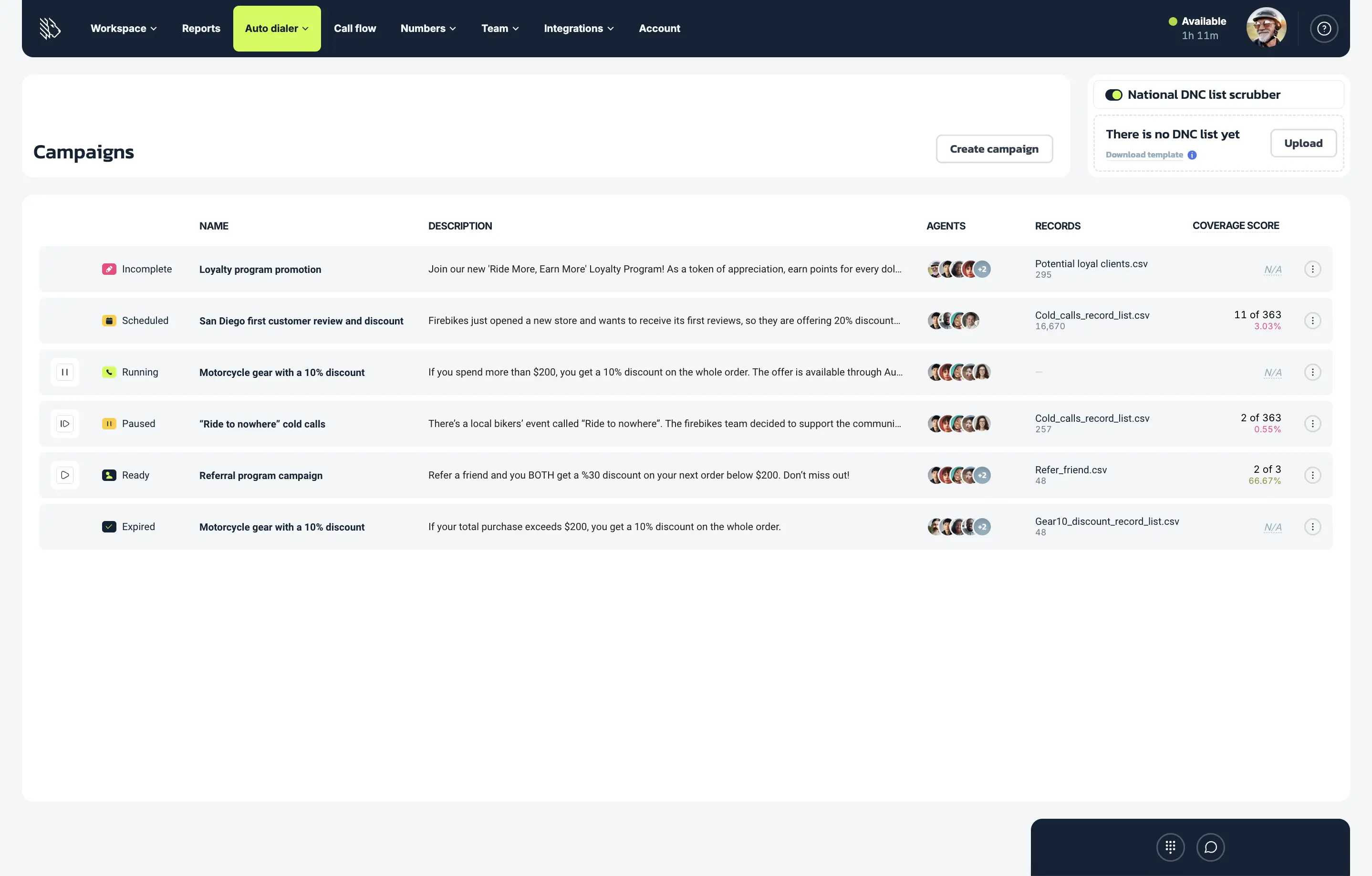
After your campaign is created, the Campaign dashboard helps you track its status, manage its progress, and make changes when needed. Here’s what you can do:
Check and manage campaign statuses
Your campaigns can have the following statuses:
- Ready: The campaign is fully configured and ready to start.
- Incomplete: Required setup items are missing.
- Preparing: The record list is still being processed.
- Running: Calls are currently being placed.
- Paused: The campaign has been temporarily stopped.
- Completed: All calls have been made.
- Scheduled: The campaign is set to start at a future date.
With a single click, campaigns can be started, paused, and resumed directly from the Campaign dashboard.
Edit campaign settings
Keep in mind that completed campaigns cannot be edited. Running and paused campaigns support only limited changes, including general settings, selected dialer settings, and the assigned agent list.
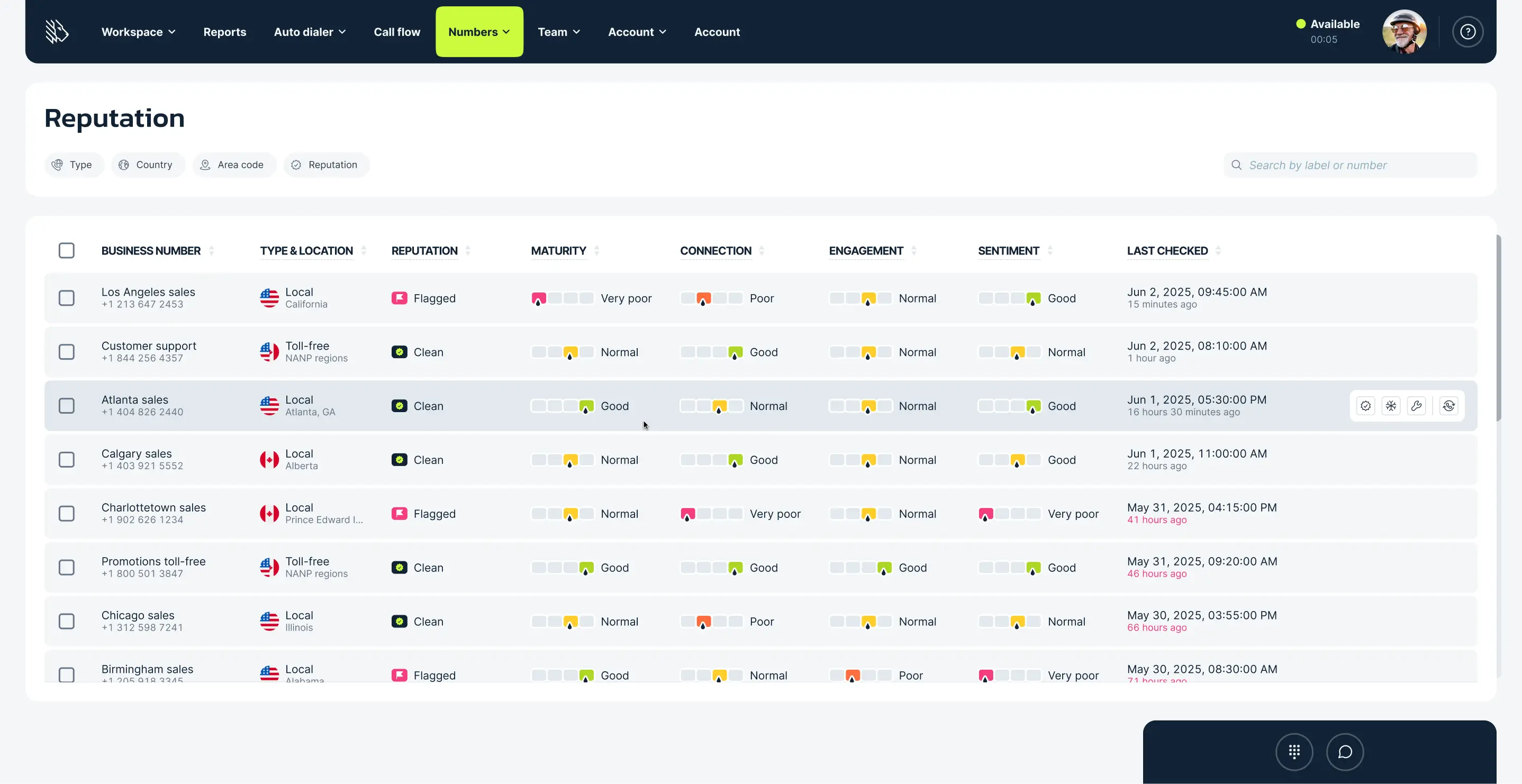
Monitor your number reputation
Use DID Reputation to monitor the status of business numbers used for outbound campaigns. It helps you identify numbers that may be flagged, blocked, or less likely to connect, so you can select the healthiest numbers and improve answer rates.
Find out more in the video below:
Are there any limitations?
There are a couple things to keep in mind when using your predictive calling setup:
- You can’t assign calls: the predictive dialer does not allow you to have the dialer direct specific calls to specific agents; the most you can do is select the agents you would like to be involved in the campaign
- Have at least 5 agents: due to the way the algorithm works, it is best to have at least five agents assigned to a given campaign
- International numbers are not supported: predictive dialer campaigns currently support only U.S. business numbers. International business numbers cannot be used for outbound dialing campaigns.
- Record list size limits: Contact lists can be up to 100 MB in size. Keep in mind that files larger than 15 MB may take several minutes to upload and process.
- Limited time to prepare for each call: Predictive dialers connect calls to agents as soon as a live person answers, leaving little time to review customer details beforehand. If you prioritize preparation time over pace, a preview dialer may be a better fit.
Best practices for setting up predictive campaigns
- Review the campaign reports: If you want to improve for the future, make sure to read through the data provided. MightyCall offers six types of call center reports, so you can choose the one that best fits your goals.
- Don’t call the same number too often: Wait at least 2–3 hours between attempts by configuring the retry period in the system disposition settings.
- Adjust Calls per Agent based on lead quality: Use lower values (2–3) for high-quality lead lists to reduce abandoned calls. For lists with more no-answers or invalid numbers, higher values (6–10) can improve efficiency.
- Avoid keeping your customers on hold too long: To prevent contacts from waiting more than 2–5 seconds for an agent, pay close attention to your abandonment rate. Keeping it at or below 3% helps reduce the risk of violating federal regulations.
- Pay attention to time zones: If you are calling outside of your time zone, be aware of what time it is wherever you are calling; calling too late can get you fined.
- Turn on the Do Not Call Scrubber: MightyCall offers an option to help you avoid violating the federal Do Not Call list (a list of telephone numbers anyone can add themselves to; violating it can incur big fines). The scrubber automatically self-updates and removes any numbers from your list which are also on the national DNC.
- Don’t forget the state Do Not Call registries: Some states have their own Do Not Call registries, and failing to follow them can also lead to fines. Check whether the states you are calling in or calling from have their own DNC requirements.
- Maintain an Internal Do Not Call list: Use an Internal (Local) DNC list to prevent future calls to contacts who have opted out. Agents can add numbers directly after a call, helping your team stay compliant and avoid unwanted outreach.
- Prepare Voicemail Drop messages in advance: If voicemail is part of your outreach strategy, create a library of prerecorded messages for common scenarios before launching the campaign. Make sure agents know which message to use in each situation.
Be more productive by setting up predictive calling
Correct predictive calling setup can intelligently help your agents make calls quicker and more efficiently. Don’t tie yourself back with outmoded technologies. Enable smart calling today!