

A power dialer – sometimes called a progressive dialer – keeps your agents moving, automatically placing the next call the moment one wraps up, with no dead time in between. Follow these steps to get your MightyCall dialer campaign up and running.
How to set up a power dialer?
Setting up power dialing with MightyCall is straightforward. Here’s how to do it, step by step.
Step 1: Navigate to the Auto Dialer section
Go to the Features tab in the dashboard and select Auto Dialer. This opens the campaign management area where you can create and monitor your outbound campaigns.
Step 2: Create a new campaign
Click the button to start a new campaign. Give it a clear name and description (for example, “Q2 Lead Follow-ups”) so your team can easily identify it at a glance.
Step 3: Configure general settings
Set the campaign schedule — how long it will run, the hours during which calls go out, and the relevant time zones. Then select the business phone number(s) your agents will use for outbound calls. Enable Local Presence Dialing for maximum pick-ups – and the DNC list to ensure you don’t violate federal law.
Step 4: Select Progressive (Power) as your dialing mode
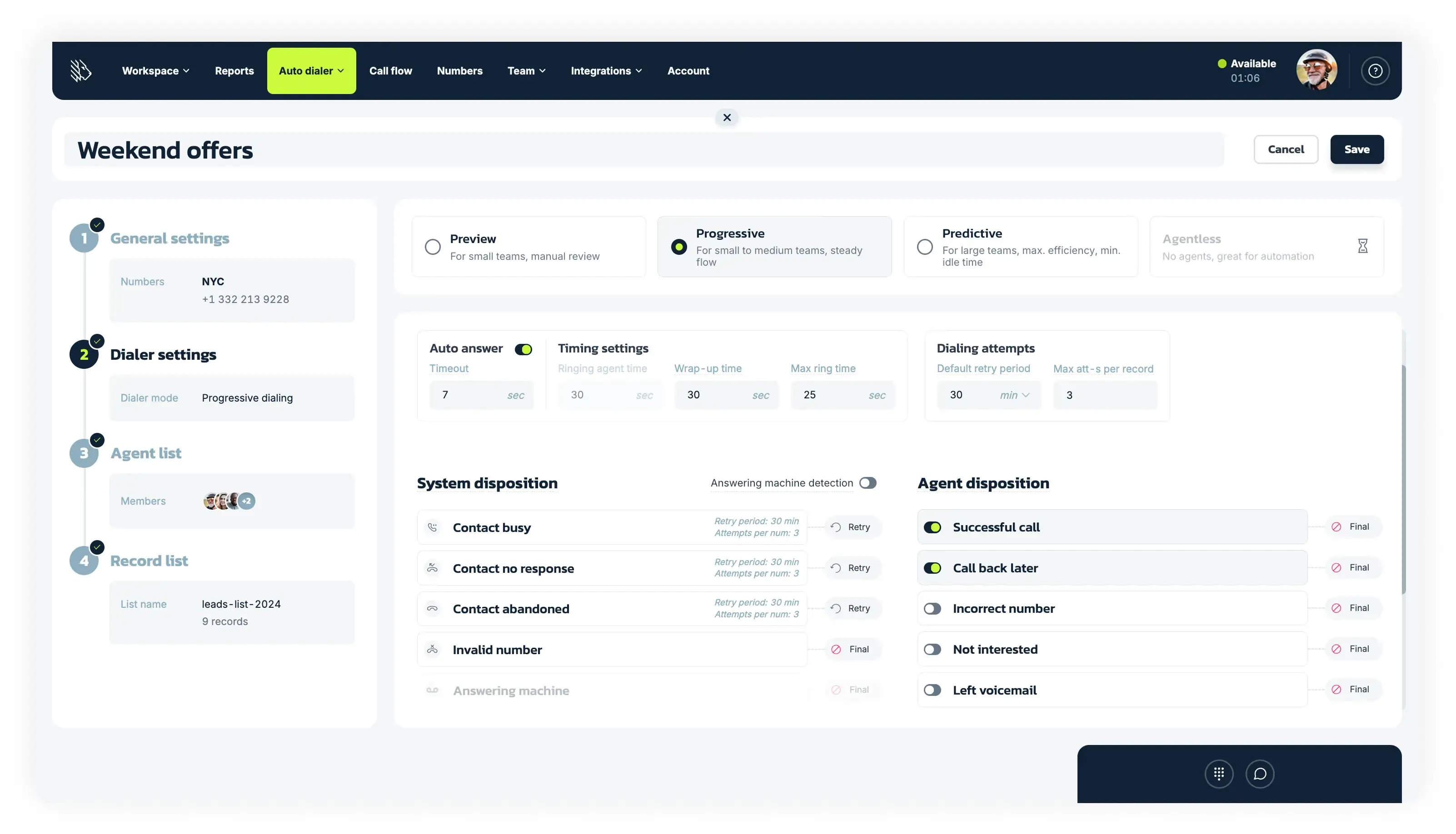
In the Dialer Settings, select Progressive mode — MightyCall’s power dialer. Then adjust the key parameters for your campaign:
- Ringing agent time: how long the dialer spends reaching an available agent
- Wrap-up time: how long agents have after a call to complete after-call tasks before the next call begins
- Max ring time: how long the dialer rings a contact before moving on
- Default retry period: how long the dialer waits before attempting to reach a contact again
- Max attempts per number: the maximum number of times the dialer will try a given contact
Step 5: Set up dispositions
Configure how the system handles calls that don’t connect (system dispositions) and what outcome options your agents can log after each call (agent dispositions). System dispositions include options like “Contact busy,” “No response,” “Contact abandoned,” and “Invalid number” — each can be set to end the attempt or trigger a retry.
Step 6: Assign agents
Select the team members who will participate in the campaign. The power dialer will call at a 1:1 ratio — one active call per available agent — so the number of agents you assign directly determines the campaign’s calling pace.
Step 7: Upload your contact list
Import your list of contacts via a CSV file. If your file’s formatting doesn’t match MightyCall’s template exactly, the system will automatically map it for you. Make sure your list complies with relevant regulations and remove any Do Not Call entries before uploading.
Step 8: Review and launch
Double-check all your settings, then launch the campaign. You can monitor real-time performance from the dashboard throughout the campaign.
More of a visual learner? Check out our video guide on YouTube:
Are there any limitations?
Like any technology, power dialers have a few limitations, though some of these are to your benefit:
- The dialer will not exceed the number of active agents: The power dialer strictly maintains a 1:1 call-to-agent ratio. If you have three agents assigned, it will place up to three simultaneous calls.
- CSV file size cannot exceed 100 MB
- State-level DNC lists are not included: The built-in DNC scrubber covers the national Do Not Call Registry only. State-level lists must be managed manually.
Best practices for setting up power dialer campaigns
Even the best piece of technology won’t help you if you do not use it right. Follow these best practices to get the most out of your dialer:
- Enable the DNC Scrubber: Turn on the Do Not Call Scrubber so any numbers on the national registry are automatically removed from your list before calls go out. Ignoring the DNC list carries real legal risk.
- Check state DNC lists manually: Several states maintain their own Do Not Call lists separate from the national registry. Research which ones apply to your contacts and scrub your list accordingly.
- Give agents enough wrap-up time: Set a wrap-up period that’s realistic for your agents’ post-call tasks. Rushing agents between calls hurts both performance and morale.
- Respect time zones: Calling too early or too late is rude, but it’s also illegal. Double-check where your contacts are located, especially for lists that span multiple time zones.
- Review campaign reports: After each campaign, use MightyCall’s reporting tools to analyze connect rates, dispositions, and agent performance. Use those insights to sharpen your next list and settings.
Set up power dialing and keep your campaigns moving
A power dialer eliminates the manual work of dialing and the wasted time between calls, letting your agents focus on what they do best: having conversations and closing deals. With MightyCall, setup takes minutes — and the results speak for themselves.