
Outbound dialers are incredible tools, helping your agents make more calls than they ever could have by dialing manually. But without careful use, they can cause you problems – or simply might just not match up to their potential.
So we decided to help you get started; by following these few, easy steps, you’ll be ready to go with your MightyCall auto dialer.
How to set up an auto dialer?
Even if you aren’t a tech wiz, MightyCall’s auto dialer is incredibly easy to set up. Just follow these steps:
Step 1: Navigate to the Auto Dialer section
Go to the Features tab in the dashboard and select Auto Dialer. This opens the campaign management area.
Step 2: Create a new outbound campaign
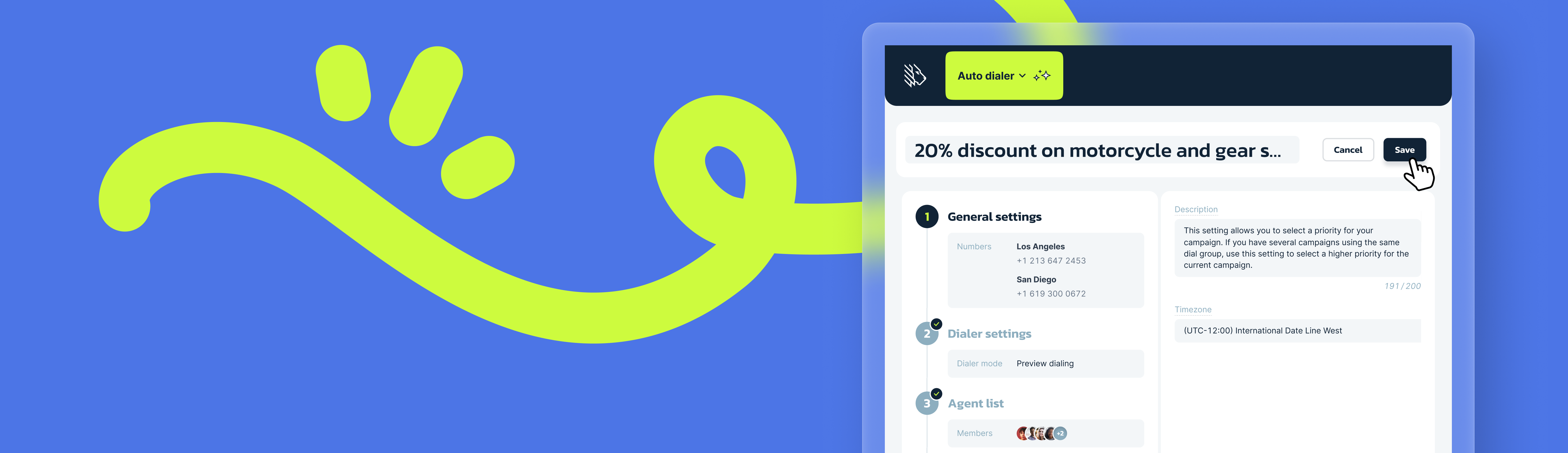
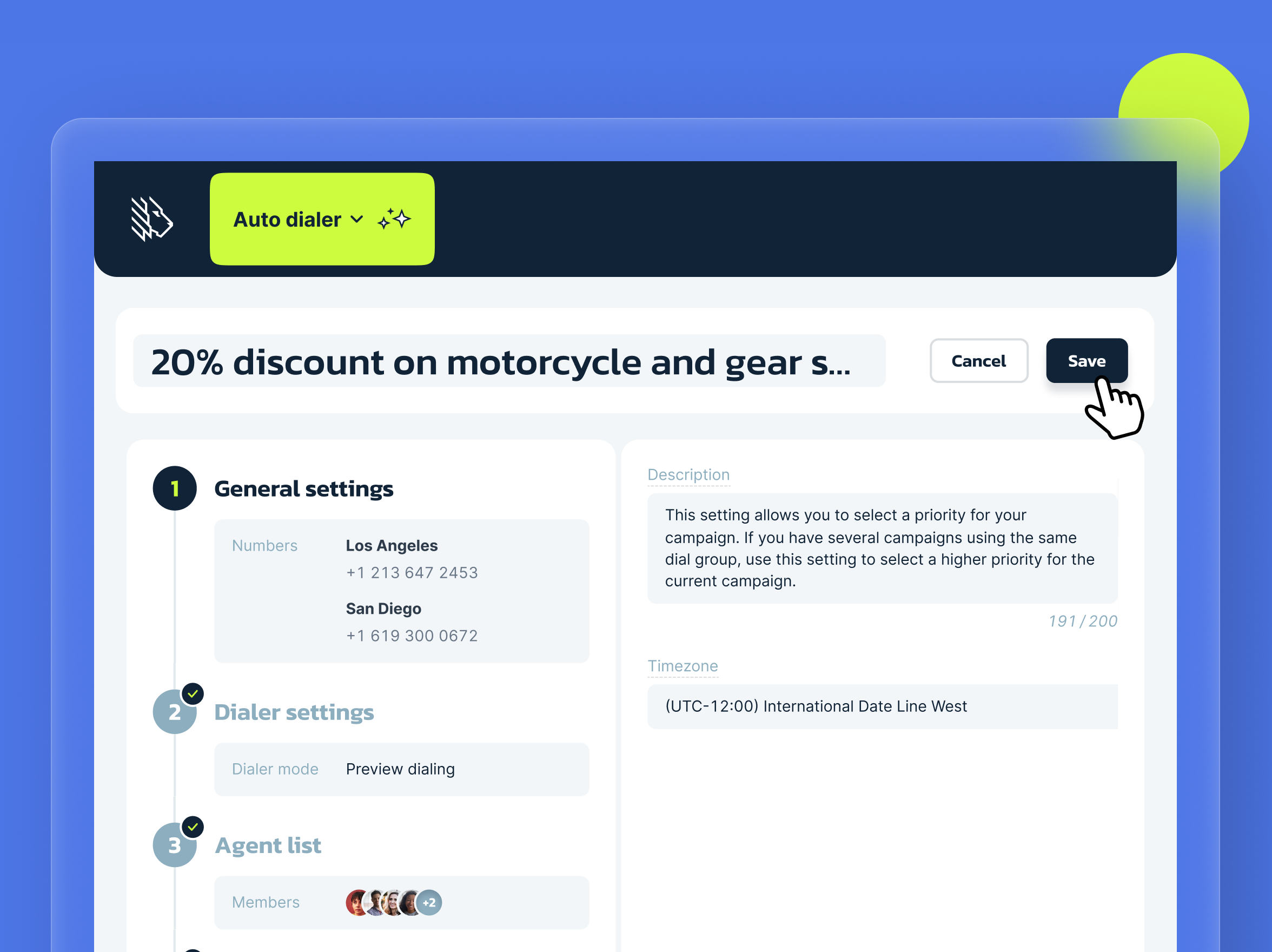
Click the button to start a new campaign. Give it a clear name and description (e.g., “Q2 Lead Follow-ups”) so your team can easily identify it.
Step 3: Establish your general campaign settings
Choose the business phone number(s) you want to display to recipients. Check that your national and company-specific Do Not Call lists are enabled, and be sure to take advantage of local presence dialing, which makes it far more likely that your leads will actually pick up the phone.
Step 4: Choose your dialing mode
Select the mode that fits your needs. MightyCall offers:
- Preview: Agents can review contact info you’ve input about each contact before the call.
- Progressive: The system dials the next number as soon as an agent becomes available, keeping it at a 1-to-1 ratio which matches agent availability.
- Predictive: The system dials multiple numbers simultaneously for maximum efficiency (best for larger teams).
Step 5: Configure dialer settings
Adjust key parameters:
- preview time,
- wrap-up time,
- max ring time,
- retry period, and
- max attempts per number.
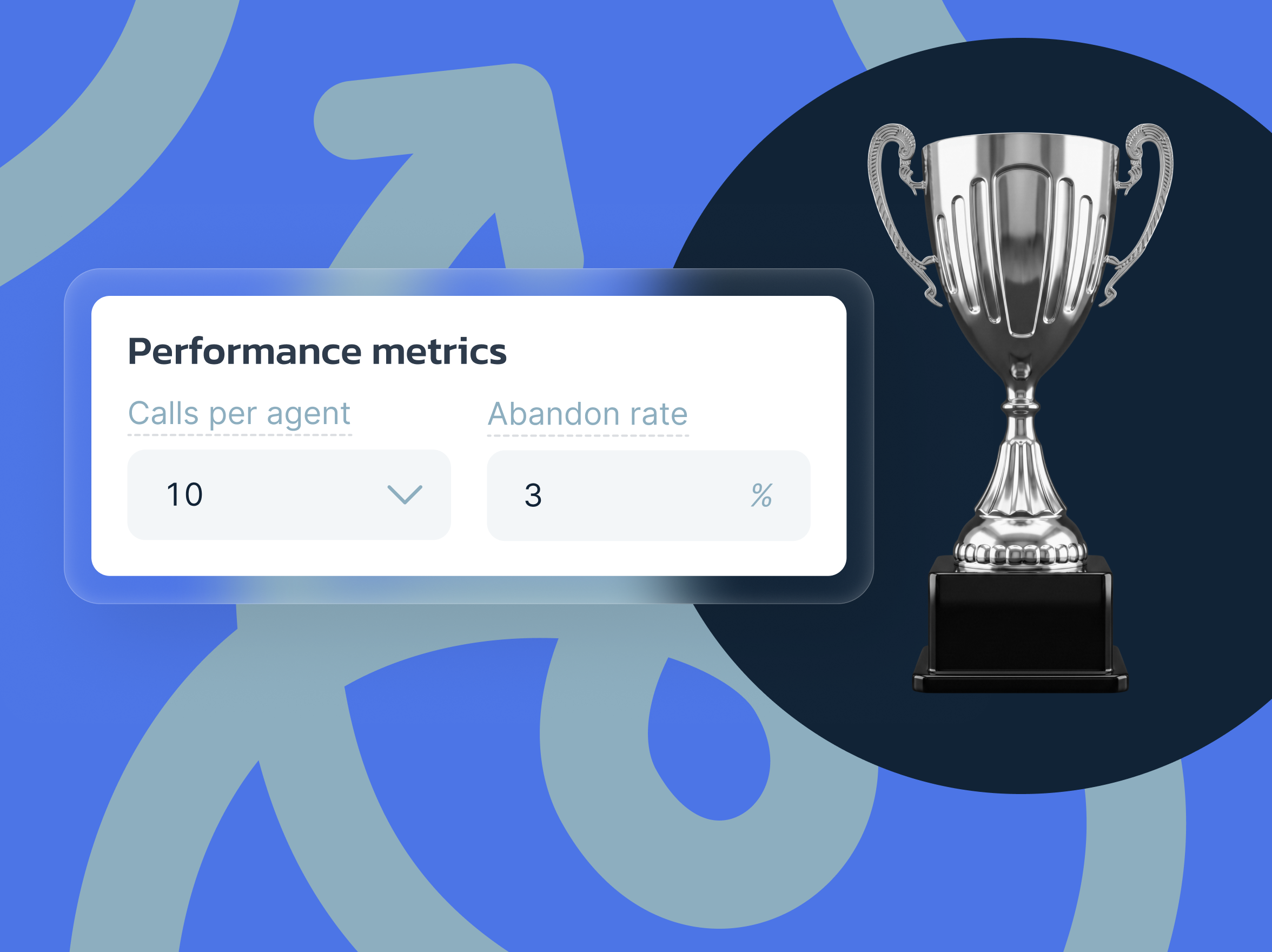
For predictive mode, set the calls-per-agent (1–10 lines), or use Auto mode to let the system optimize while keeping abandon rates low.
Step 6: Assign agents and set dispositions
Select team members who will participate. Configure system and agent dispositions (call outcomes) so agents can quickly log results like “Interested,” “No Answer,” or “Voicemail.”
Step 7: Upload your contact list
Upload a CSV file containing phone numbers (and optional additional data, such as names or notes). Ensure your list complies with regulations and remove any Do Not Call entries.
Step 8: Review and launch the campaign
Double-check all settings, then start the campaign. Monitor real-time performance from the dashboard.
Need some more help understanding how to set your dialer up? Check out our video guide on YouTube:
Are there any limitations?
Like with any program, there are a few limitations to keep in mind (though not many!):
- CSV file size cannot exceed 100 MB.
- Predictive mode performs best with teams of at least 5 agents for optimal pacing.
- Certain compliance features, like the DNC list sweeper, only address national-level features; state-level Do Not Call lists are not included, requiring you to do your own due diligence.
Best practices for setting up auto campaigns
There are obviously plenty of steps you can take to really get the most out of your dialer. But make sure you’re doing the following:
- Test with smaller lists first: Run a pilot campaign to fine-tune pacing and agent readiness before scaling up.
- Monitor abandon rates closely: Keep them under 3% in predictive mode to stay compliant with federal law, as well as to maintain a good customer experience.
- Use meaningful dispositions: Train agents to log outcomes accurately so you can analyze campaign performance and improve future lists.
- Schedule calls thoughtfully: Respect time zones and avoid calling too early or late to improve answer rates (beyond the fact that it’s illegal to call too late or too early, it’s also just good manners).
- Combine with scripts and CRM notes: Give agents quick access to context for more personalized conversations.
- Review analytics regularly: Adjust retry logic and pacing based on real metrics like connect rates and average handle time.
Set up your auto dialer – and set yourself up for success
Setting up an auto dialer with MightyCall is straightforward and delivers fast results. By automating repetitive dialing tasks, you free your team to focus on what matters most — building relationships and closing deals.
Enable powerful outbound calling today and watch your campaign performance soar.