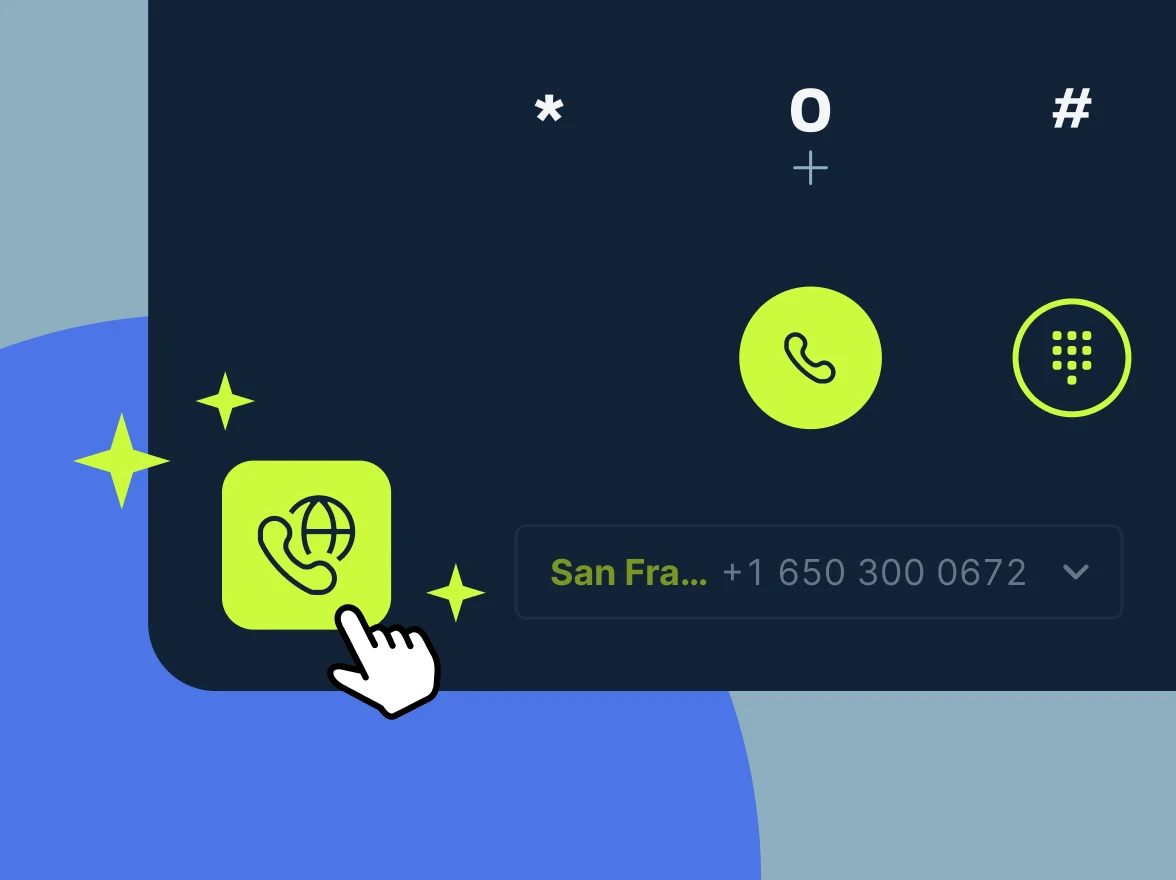

Local Presence has already helped MightyCall customers boost answer rates on outbound campaigns by matching the caller ID to the area code of the person being called. Now, we’re extending that to every manual call your team makes from the webphone.
Starting now, when someone on your team manually dials a contact from the MightyCall webphone, Local Presence automatically selects a business number with a matching — or nearby — area code. No more manual number-switching; just a more familiar caller ID, on every call, every time.
What’s New
Previously, Local Presence applied only to automated outbound campaigns. With this update, the same logic now runs behind every manual call placed from the webphone:
- One-click toggle. A new Local Presence icon sits right next to the business number selector in the webphone. Turn it on, and MightyCall takes care of the rest.
- Smart number matching. The system automatically picks the best available business number based on the contact’s area code — no need to remember which number to dial from.
- Setting that follows you. Once you turn Local Presence on, the setting is saved to your user profile. Switch browsers or move from the web app to the desktop app, and your preference travels with you.
How the Number Selection Works
When Local Presence is on and you place a manual call, MightyCall looks for the best match among the business numbers you have access to, in this order:
- Exact area code match. MightyCall first looks for a business number that shares the contact’s area code. If more than one qualifies, it picks one at random.
- Overlay area code match. No exact match? MightyCall checks for numbers in an overlay area code — a second code that serves the same region as the contact’s (for example, 323 or 738 for a 213 number).
- Fallback to your last-used number. If no direct or overlay match exists, MightyCall uses whichever business number was previously selected in your webphone.
- Same logic for toll-free numbers. Toll-free numbers get matched by area code the same way, falling back to your previously selected number when no match is available.
The ultimate result is that your team doesn’t have to think about it at all. The right number shows up on the other end of the line automatically.
How to Turn It On
- Open the webphone.
- Find the Local Presence icon next to your business number selector.
Click it to turn Local Presence on. That’s it! Your next manual call will automatically use a matching local number.
Where It’s Available
Local Presence for manual dialing is live now in the MightyCall webphone and desktop app, on all plans for accounts with any number of business numbers.
A couple of things to know:
- While Local Presence is on, the business number selector is temporarily disabled — since MightyCall chooses the number for you, there’s nothing to pick manually.
- This release covers the webphone and desktop app. The mobile apps aren’t supported yet.
Why It Matters
Unknown numbers get ignored. A local area code, on the other hand, reads as familiar — and familiar numbers get picked up. By making local caller ID the default behavior for manual calls, not just campaigns, MightyCall helps your team build that same trust on every single conversation, without adding a single extra step to their workflow.
Want to see Local Presence in action for outbound campaigns too? Check out Local Presence Dialing or watch the quick video walkthrough.