
Lists is a new section inside MightyCall’s Auto Dialer where you can upload, edit, reuse, and assign contact lists. All of that without opening a single campaign!
What you’ll see
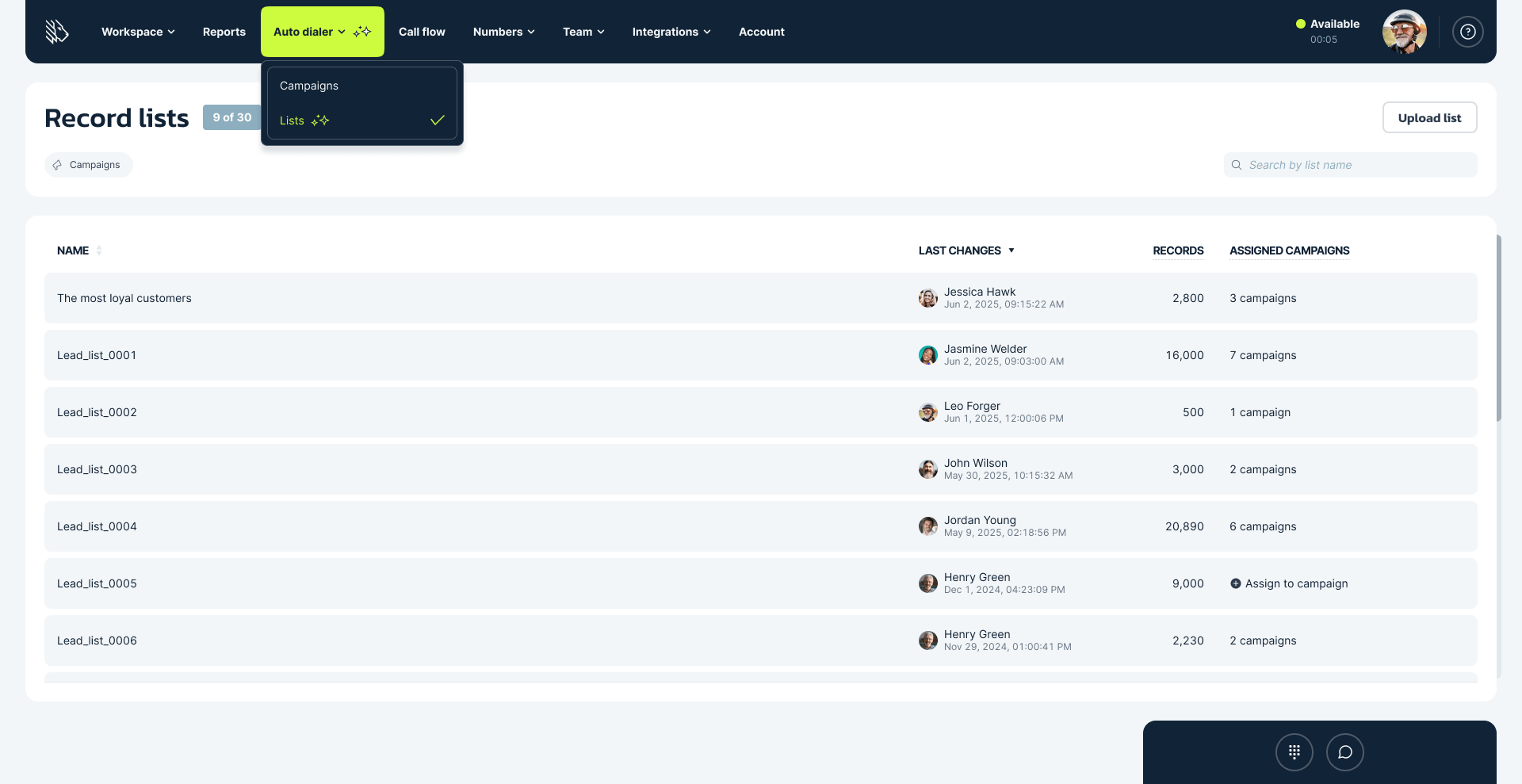
Open Auto Dialer → Lists, and you’ll see every list on your account, newest first. Each row shows you:
- the list name
- when it was last uploaded or changed, and which agent did it
- how many records it holds
- how many campaigns it’s assigned to
Search by name, filter by campaign, or sort by name or date. If a teammate uploads or edits a list while you’re on the page, the list updates in front of you — no refresh needed.
Upload once, use everywhere
Drag a file onto the page or hit Upload list. Automatically map your columns, confirm, and the import runs in the background while you get on with your day. When the import is completed, you’ll get a notification with a link that takes you straight to the new list.
If some records didn’t make it, we’ll tell you exactly how many and let you download a file of the rejected rows so you can see what went wrong. That file stays available for 24 hours.
Edit lists without touching your campaigns
Open any list to see the records inside it, and from there you can:
- Add more — add a new file to the existing list
- Replace — swap in a fresh file while keeping the list name and its campaign assignments
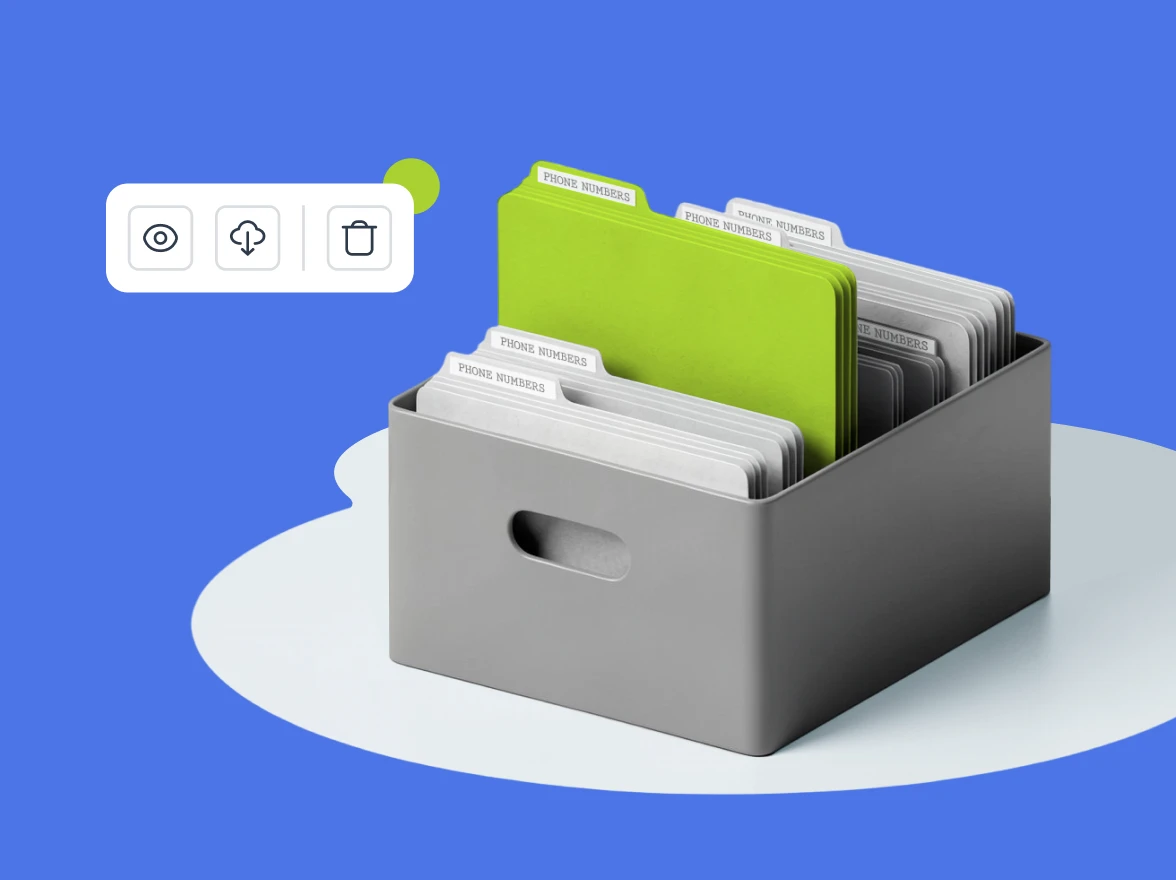
- Export as CSV — download the whole list
- Rename — click the title and type
- Delete — with a five-second undo, in case of second thoughts
If you choose to replace, you also decide whether the campaign should call everyone again or only the contacts still in play.
Are you editing a list that a running campaign is using? We’ll warn you first, pause briefly to load the updated records, and put the campaign back to work on its own.
Roles and permissions
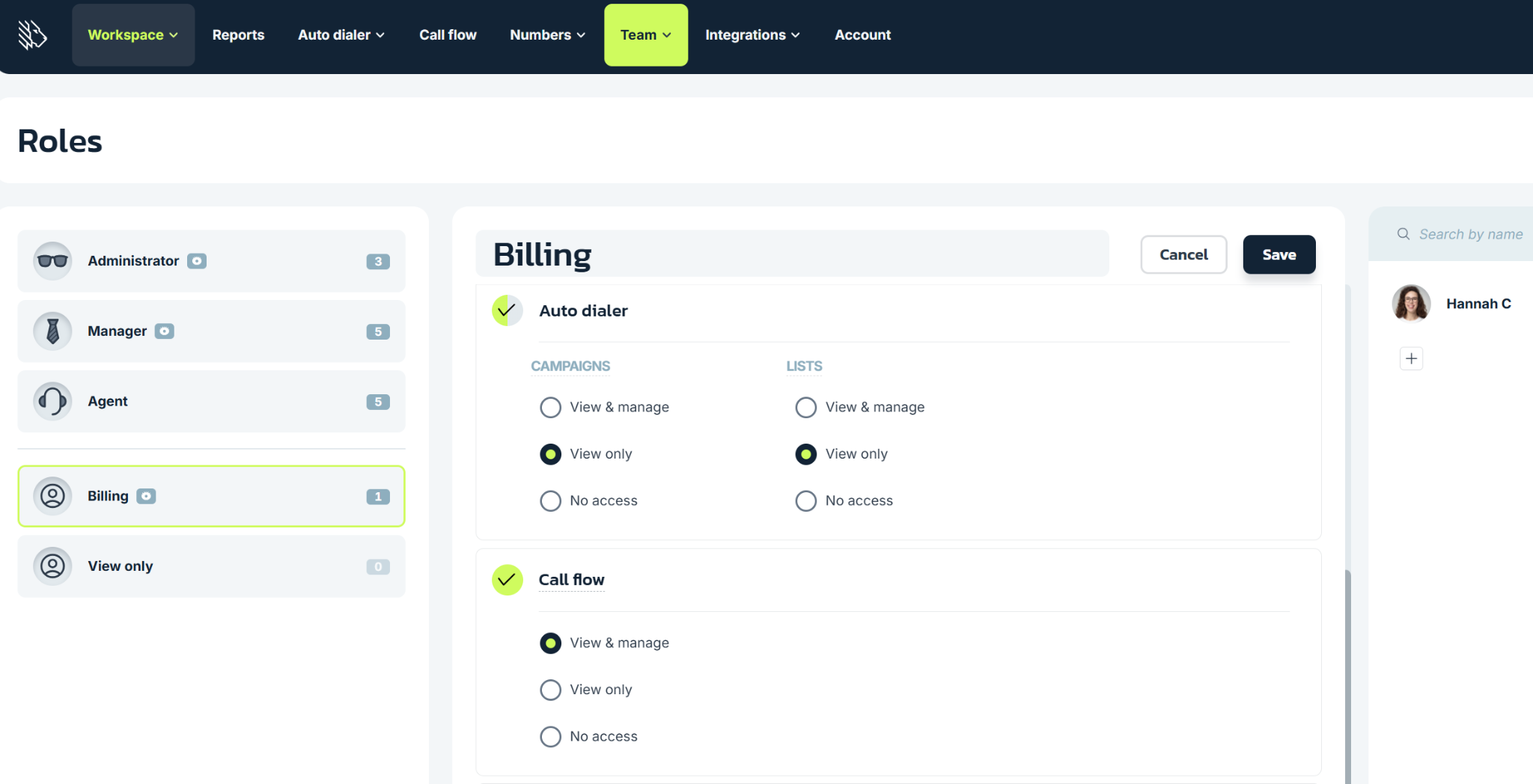
The Lists section has its own permission setting, so you can decide who does what:
- View & manage — full access: upload, edit, export, delete, assign
- View only — can open a list and read the records, but can’t upload, edit, export, or delete
- No access — the section is hidden
Set it per role, alongside your other permissions.
Try it now
Open Auto dialer → Lists in your MightyCall account. If you’ve run a campaign before, your existing lists are already waiting for you there.